Funding Sources Module: Overview & Step-by-Step Guide
Last updated: May 14, 2026
The Funding Sources Module in Hypercore allows you to model the capital structure behind your loans, tracking which funds or entities are providing capital, how they should be repaid, and what returns they are entitled to.
This guide walks you through:
What a Funding Entity is and how to create one
How to allocate that entity as a Funding Source on a loan
How to define interest, fees, and terms
Handling debt sales and internal expenses
Common workflows and troubleshooting
What Is a Funding Entity?
A Funding Entity represents the investor, lender, or capital pool that provides funding for a loan. You can think of this as the actual “funder”: whether it’s your firm, a syndicate partner, or a third-party fund.
Each entity contains:
A profile (name, banking details, legal docs)
A record of all loans they’ve funded
Their terms, schedules, and accrued performance (when selecting the specific Funding Source)
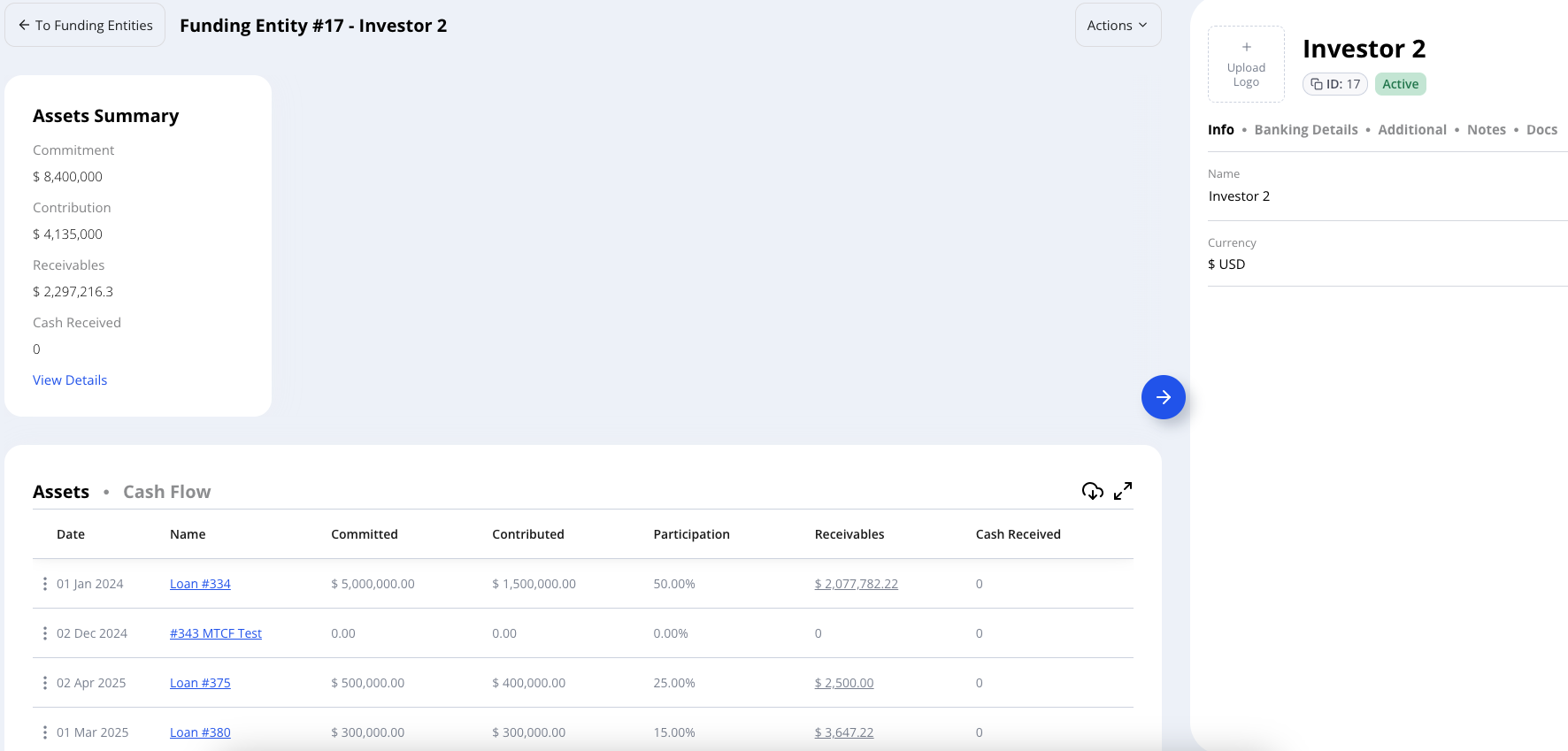
➕ Creating a New Funding Entity
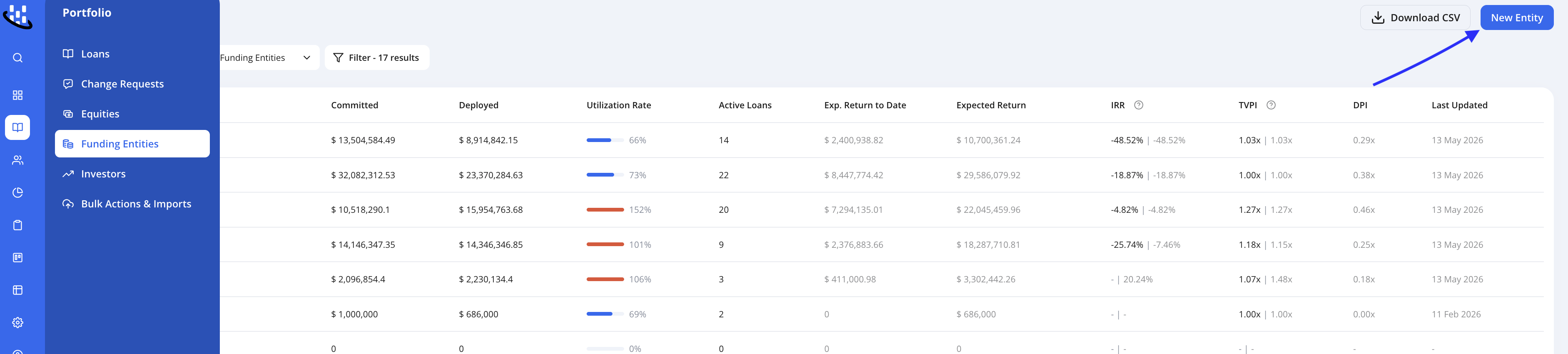
Navigate to the Funding Entities section
Click “New Entity”
Enter a name and (optionally) attach:
Legal documentation
Bank info
Additional notes or data tables
Once created, you can now use this entity to fund loans.
Allocating a Funding Source to a Loan
After your loan is set up and your funding entities are created, you’ll now assign how the loan is funded via Funding Sources.
Funding Source = Funding Entity + Loan + Allocation Terms
From the loan view, click the Funding Sources card
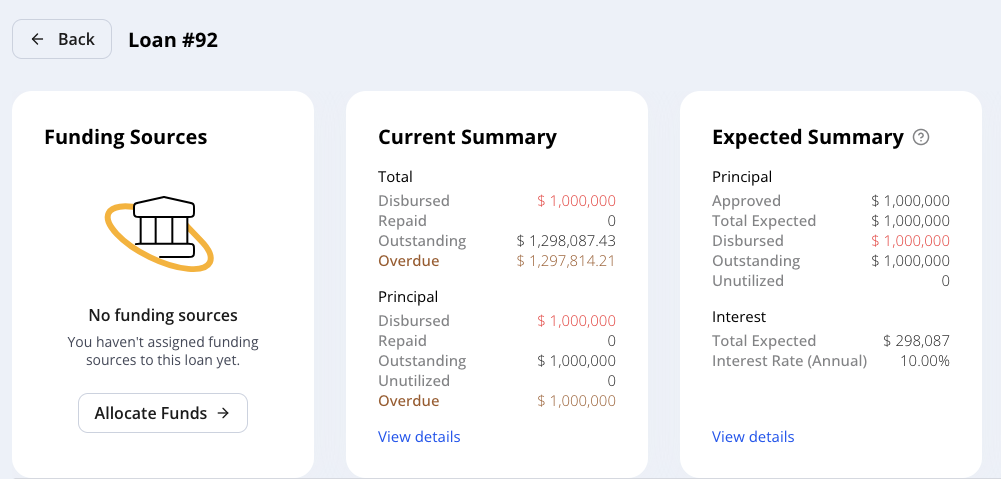
Select “Allocate Funds”
Choose a funding entity and enter:
Percentage or dollar amount (e.g., 50% or $5,000,000)
The system will calculate the remaining unallocated amount
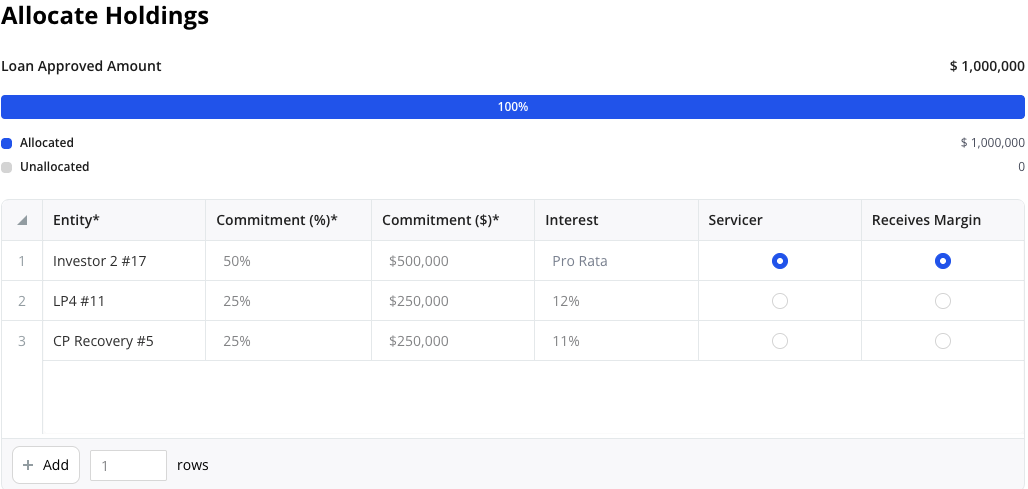
You can add as many funding entities as needed to cover the full loan.
Configuring Interest and Return Terms
For each funding source, define how returns will be shared:
Interest Options
Pro-rata: Based on capital share or commitment share
Fixed Interest Rate: Set a specific rate (e.g., 8%)
Match Loan Terms: Accrue interest daily based on borrower terms (ideal for nuanced returns)
If you’re using a fixed rate or non-prorata returns, Hypercore will automatically calculate the investor’s specific interest.
Borrower-Level Fee Allocation
When a borrower pays a fee at the loan level, you can decide how it’s allocated across funding sources:
Toggle “Allocate to funding sources” ON
Choose allocation logic:
Pro-rata by commitment or principal
Flat override amount
Custom share (e.g. 50%)
Send all to Servicer
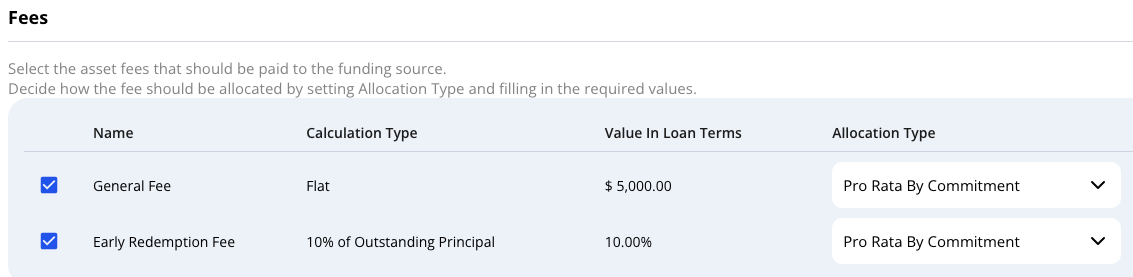
Useful for origination, exit, or miscellaneous borrower-paid fees.
Assigning the Servicer (Margin Recipient)
A Servicer is the entity managing the loan servicing (usually yourself) and usually receives any remaining interest, fees, or margin not passed to other investors.
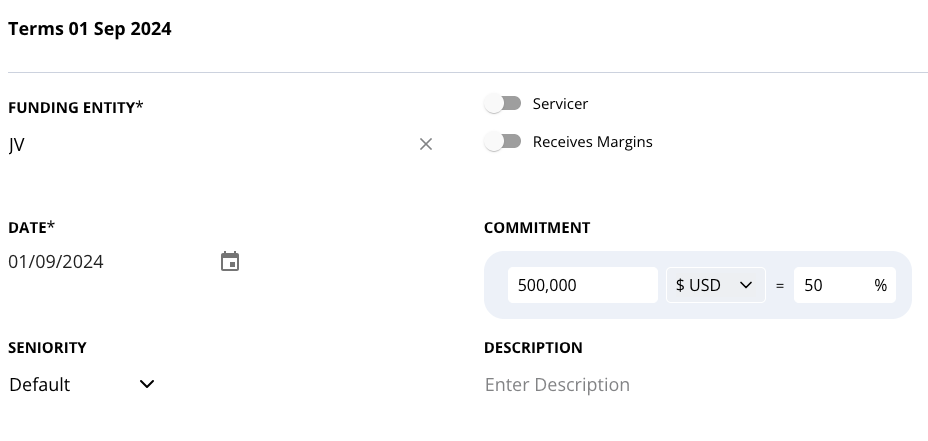
To assign:
Add your entity with an allocation (even if it is 0%)
Toggle “Servicer” and “Receives Margins” (optional) on
This entity will now capture the residuals automatically
This is useful if you’re earning the spread between what the borrower pays and what the funders receive.
Automatically Pay Expected Interest Payments
When this setting is enabled, Hypercore will automatically mark expected interest payments as paid if no actual payment is recorded on the scheduled date.
How to Enable Automatic Interest Payments
In the Terms view, scroll down to the Settings section.
Check the box labeled Automatically pay expected interest payments.

How It Works
On any day when an expected interest payment is due, but no actual payment has been recorded on the same day, Hypercore automatically generates the payment entry.
Viewing the Funding Source Schedule
Each funding source has a dedicated schedule, just like the borrower:
Displays interest, principal, and fees from the perspective of the investor
Automatically updates based on the loan’s performance and terms
Supports manual adjustments, e.g. waivers or overrides
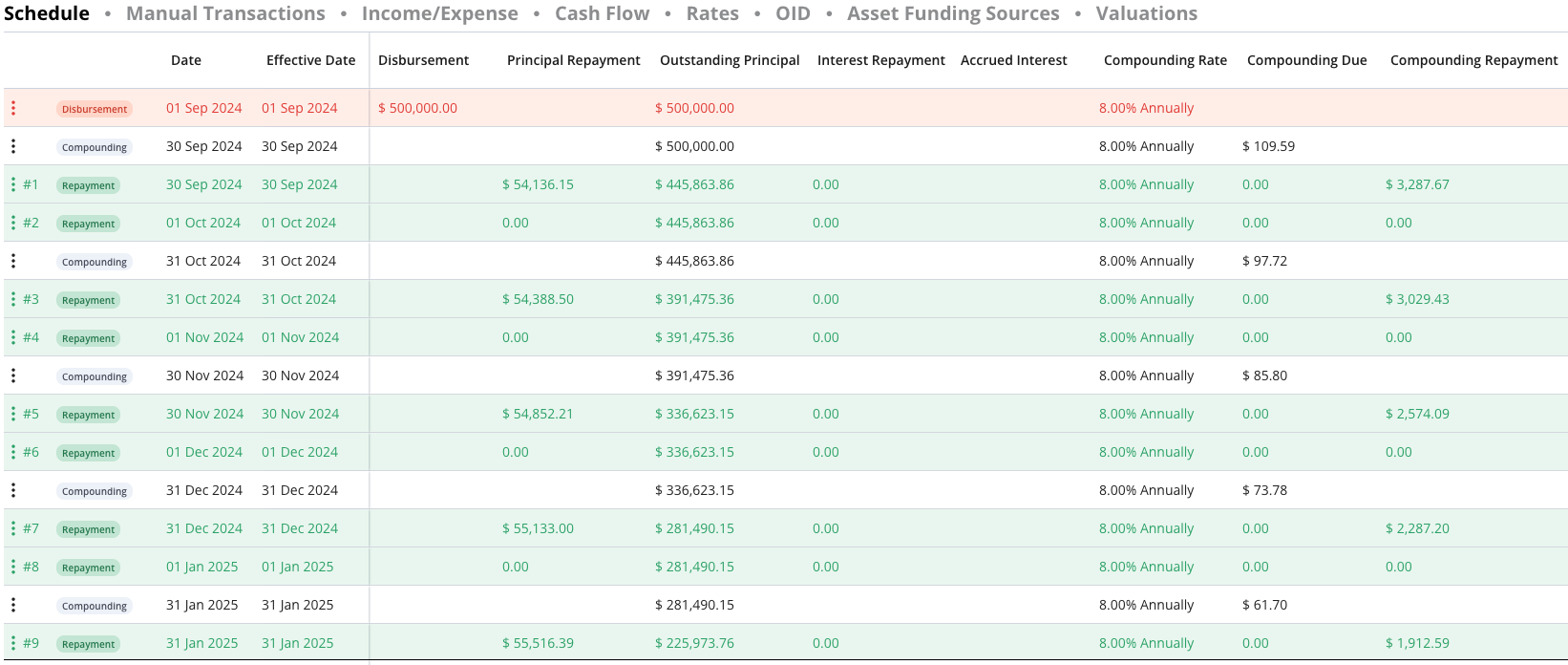
No need to manually record repayments, returns accrue automatically based on the terms set.
Updating Terms Over Time
To reflect a change (e.g., increased commitment or new rate):
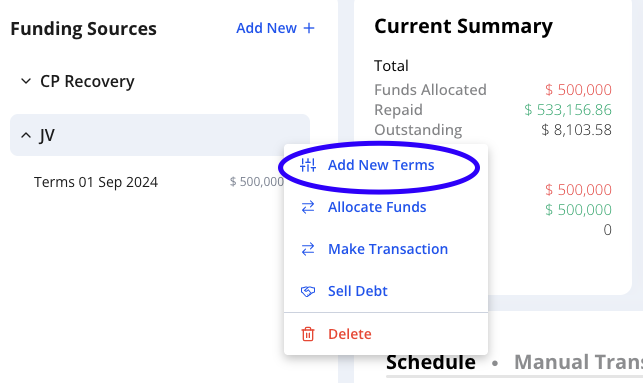
Open the funding source’s page
Click “Add New Terms”
Set a new effective date
Edit fields like commitment, interest, toggles, etc.
Each new term set maintains historical integrity.
Selling/Transferring Debt
To transfer a portion of one entity’s investment to another:
From the funding source, click “Sell Debt”
Choose:
Sale date
Buyer entity
% of commitment or flat principal amount to transfer (e.g., 30%)
System will:
Recalculate pre-/post-sale values
Auto-create new terms for buyer/seller
Optionally, leave a comment for review before finalizing
Click “Sell Debt” to complete
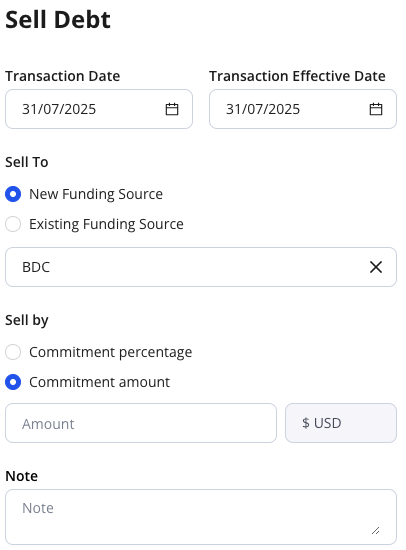
You may override interest/principal split manually if needed.
Cross-Fund Fees (Income & Expenses)
Set up internal fees between funding entities that are useful for:
Admin fees
Management fees
Overrides
Note that these fees are to reflect any cash transactions solely between funding entities and/or servicer.
These do not reflect on the borrower’s loan schedule in any way.
To add:
Click “+ Income/Expense” on the funding entity that will receive the fee
Select one or more paying entities
Define the fee amount (e.g., $1,000 per repayment)
You’ll now see:
Income row on the receiving entity
Expense row (negative) on the paying entity
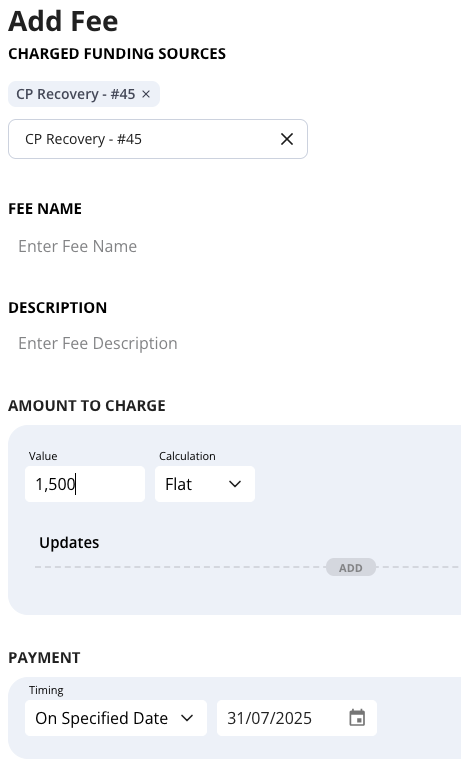
These appear on the funders’ schedules and affect net cash flow.
Manually Splitting Loan Transactions Across Funding Sources
You can manually define how a loan transaction (such as a disbursement or repayment) is split between multiple funding sources. This gives you precise control over allocation when a loan is financed by more than one entity.
How to Manually Split a Transaction
Open the Loan - Go to the loan you want to edit and open its Amortization Schedule.
Locate the Relevant Transaction
Find the row representing the disbursement or repayment you want to split.
Edit the Transaction
Click the ellipsis (⋮) at the end of the row -> Edit Transaction (or Edit Disbursement).
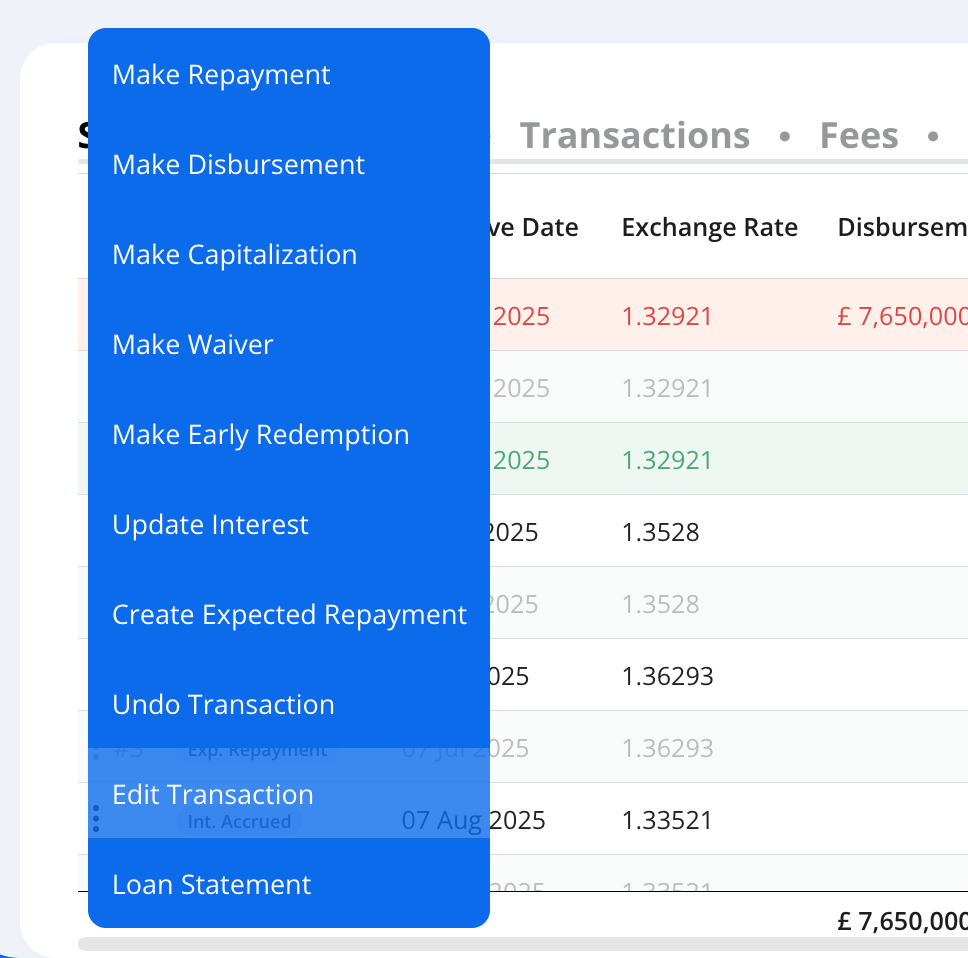
Access the Funding Source Split
In the Edit Repayment (or Edit Disbursement) window, scroll down to the section labeled Funding Sources Split.
Click Edit to open the Funding Sources Split module.
Edit the Split
Here, you can enter or adjust the allocation amounts or percentages for each funding source.
Click "Reset" button if you would like to revert back to Hypercore's calculation
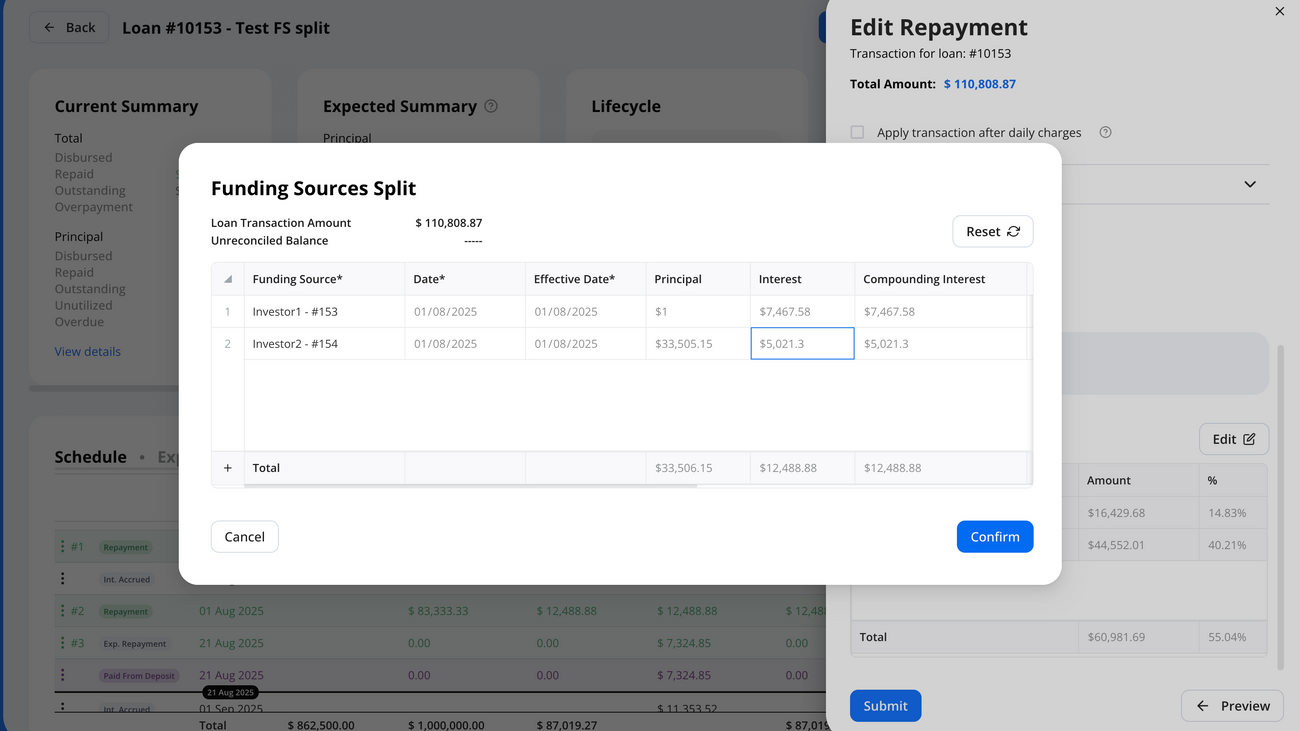
Refreshing Schedules & Troubleshooting
Funding source schedules recalculate:
Automatically on major loan actions (repayments, early redemptions, fee events)
Nightly in the background
If changes don’t reflect:
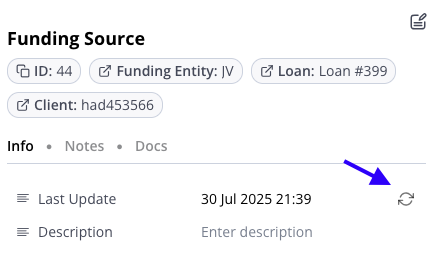
Click the refresh icon on the funding source
You can also see a pop-up indicator if the schedule is outdated
Managing Funding Entity Details
Each funding entity’s profile gives you full visibility:
See all loans they fund
Track historical terms & transactions
Attach docs, bank info, and notes
Use data for Investor Notices, fund performance summaries, and reporting.
Funding Source Statements
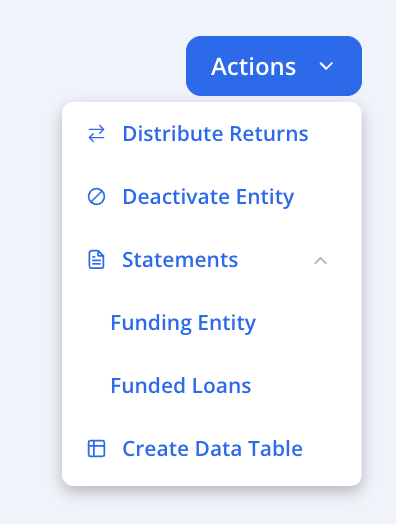
Select the Funding entity you want > Select from Funding Entity or Funding Loans
Funding Entity: A single file containing details of all the loans in which the funding source has invested during a specific period, presented in one comprehensive statement.
Funding Loans: Downloads a ZIP file containing individual loan statements, with one statement per loan the selected funding source has invested in.
Best Practices
Use servicer/margin toggles to capture margin and residuals
Start simple (pro-rata) before modeling custom returns
Comment and save debt sales for audit clarity
Generate statements for each funding source from the funding entity page
Use Funding source templates for recurring structures terms, more info: 📄 Funding Source Templates
Need Help?
For additional support, contact us at support@hypercore.ai.