Control Layer Guide
Last updated: June 9, 2026
Overview
The Control Layer ensures every loan action follows a secure maker–checker approval process. A maker submits a request, and a separate checker reviews and approves, rejects, or requests updates before the change becomes effective.
Enable the Control Layer
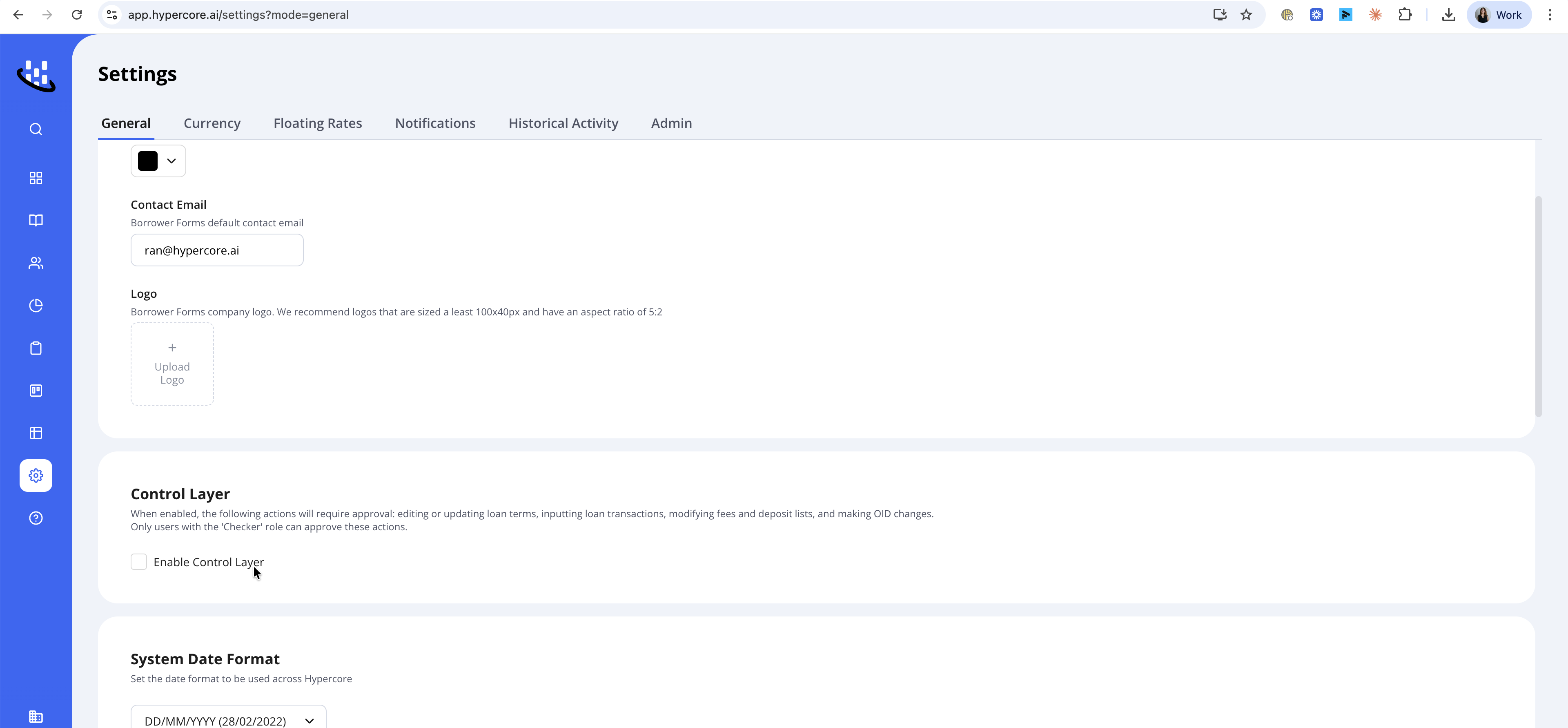
Before using the maker–checker workflow, ensure the Control Layer is enabled for your environment.
Navigate to Settings.
Locate the Enable Control Layer option.
Select the checkbox to turn the Control Layer on
Once enabled, all supported loan actions will follow the Control Layer approval process.
Roles
Role | Responsibility |
|---|---|
Maker | Creates and submits the request |
Checker / Approver | Reviews and approves or rejects the request |
Control Layer Bypass | Can do system actions in the system independent of the control layer |
The same user cannot both submit and approve a request. Hypercore automatically enforces this separation.
Supported Actions
Creating/approving a new loan
Editing/ creating amendments
Actions inside the schedule:
Adding fees
Transactions- disbursements repayments
Deposits
OID
Examples include:
Interest rate changes
Repayment schedule updates
Additional disbursements
Covenant modifications
Loan restructures
Submit a Request
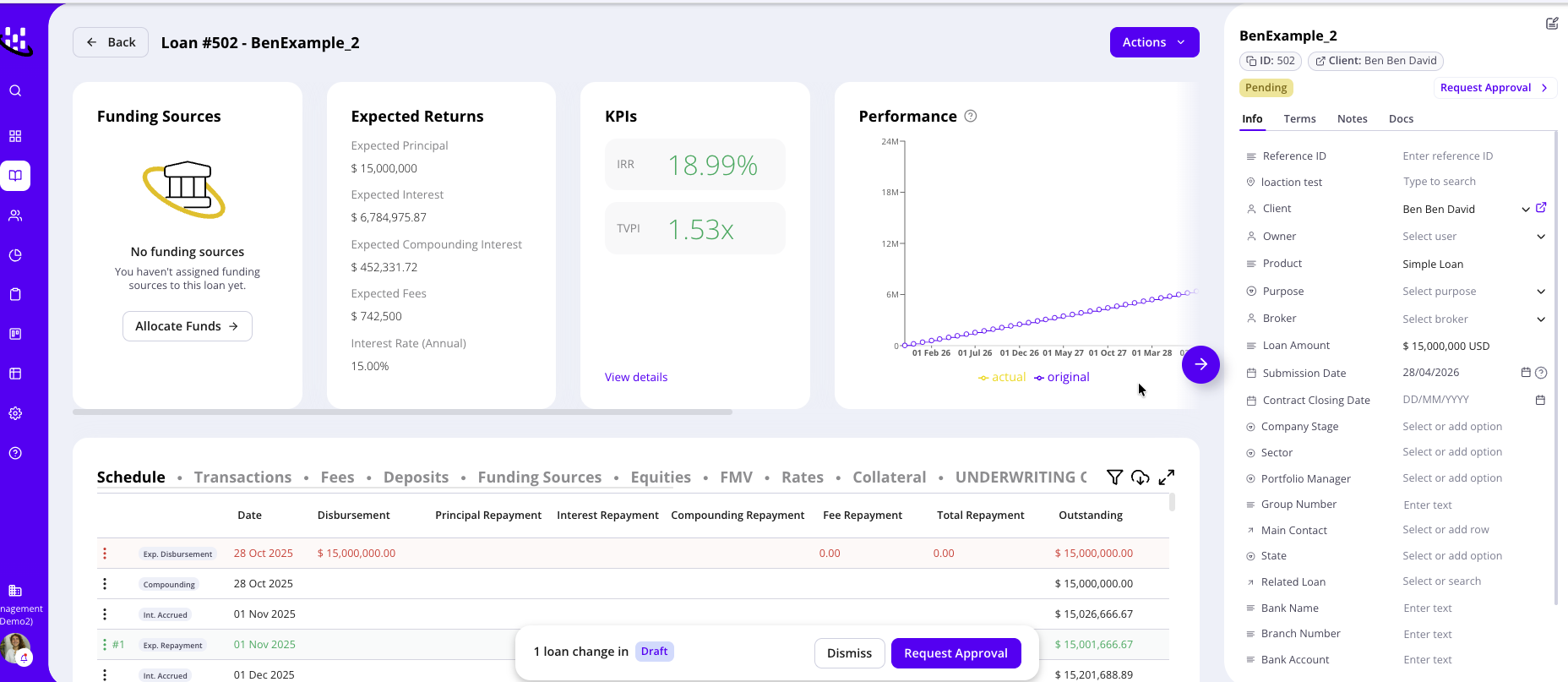
1. Open Record
Navigate to the loan from your dashboard or loan list. Inside the loan record do the desired action.
Once action is completed Loan Request draft is created
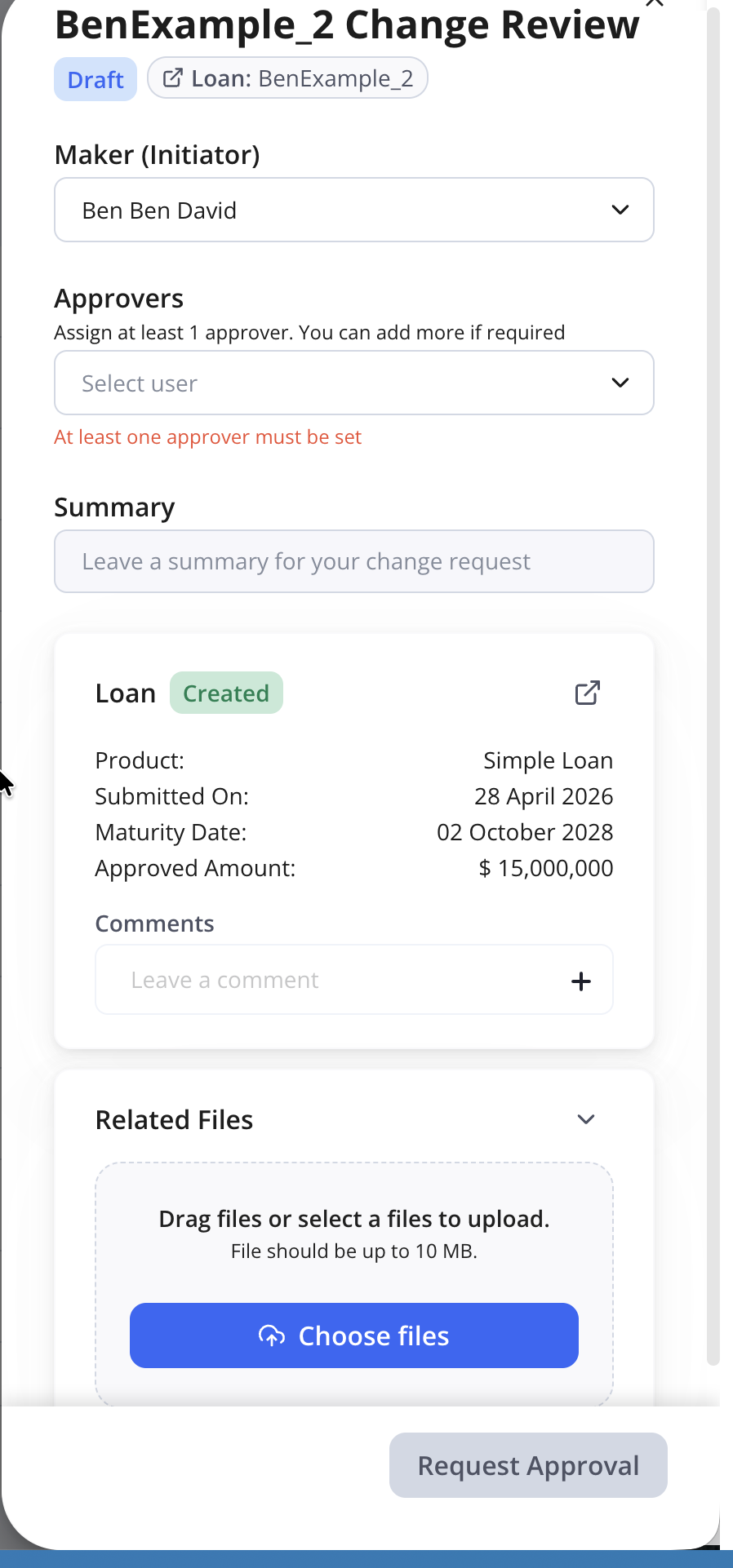
2. Add Change Request Details
Assign Approver
Confirm you are the Initiator
Provide context for the request so the checker can review it efficiently.
Include:
A clear summary of the change
The reason for the request
Supporting documentation where relevant. Well-documented requests are typically approved faster and require fewer revisions.
3. Submit the Request
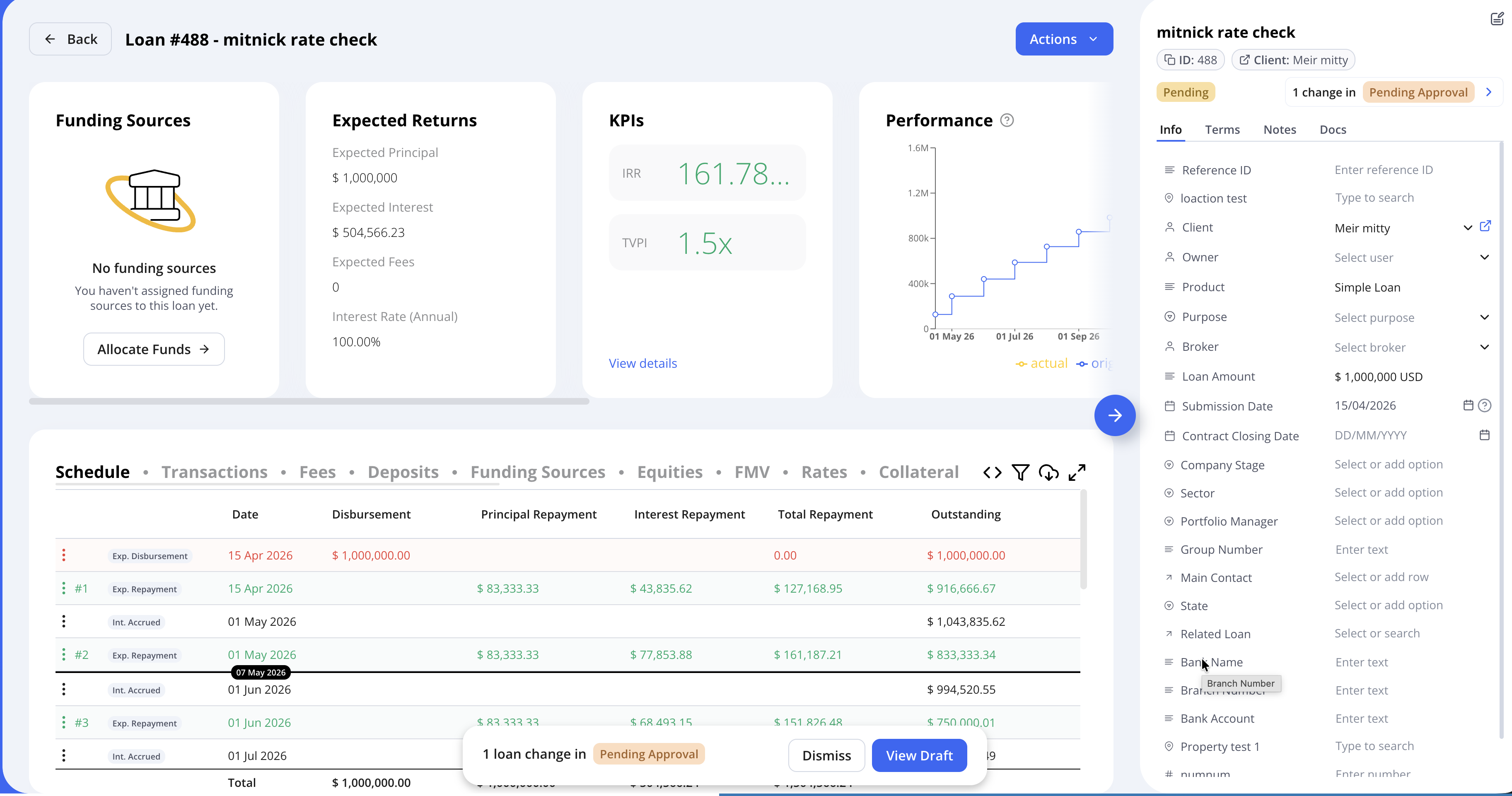
The request status changes to Pending Approval
The designated checker is notified automatically
The request now appears in the approver queue for review and stats changes to Pending Approval.
Before a request is submitted for approval, it remains in Draft status.
Once the request has been submitted for approval, its status changes to Pending Approval.
While the request is in this state, only the request initiator can make changes to the loan.
Review a Request
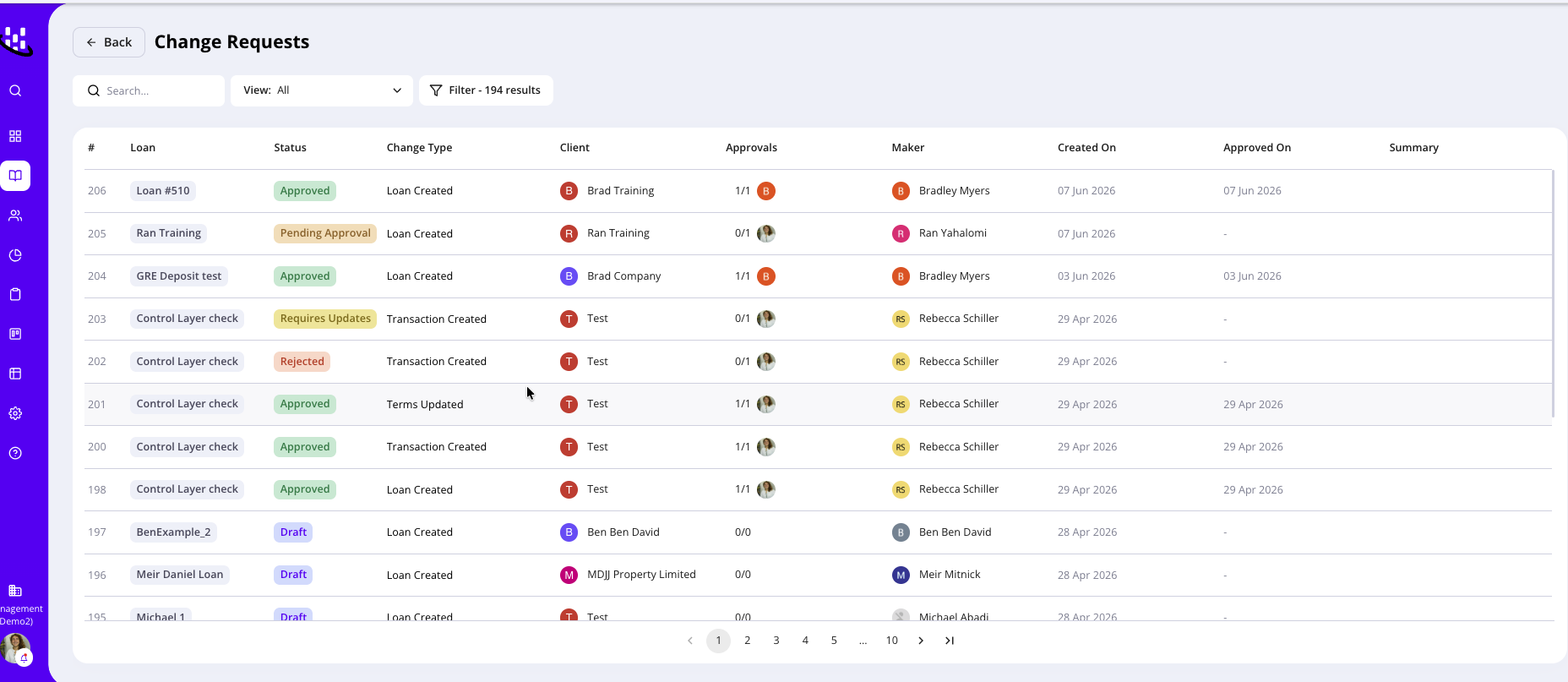
The checker opens the request from the Control Layer queue and reviews:
Loan details
Submitted comments
Attachments
Proposed changes
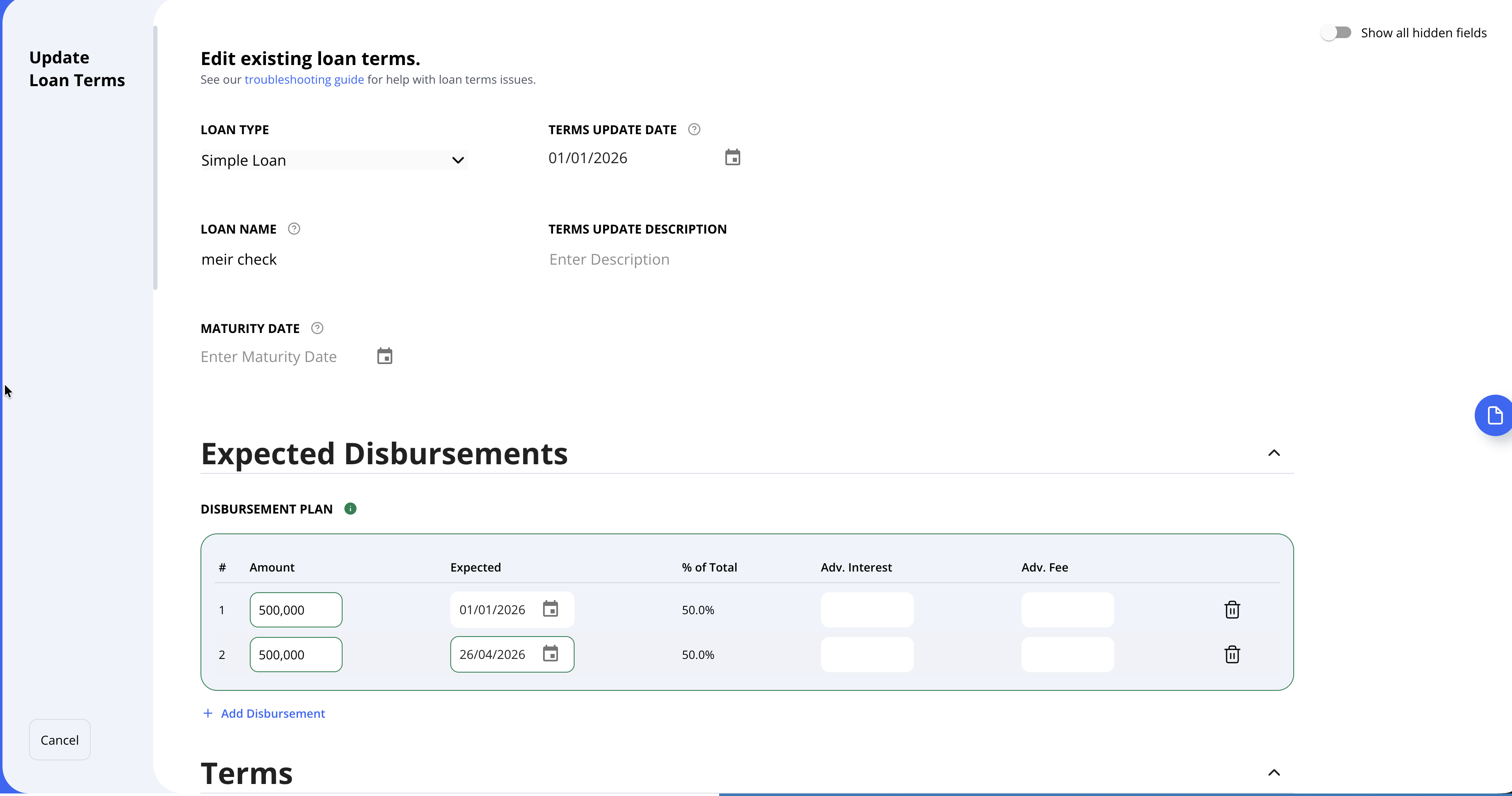
If relevant and the change was related to a change in the loan term the checker will also see the change in the terms and the original value
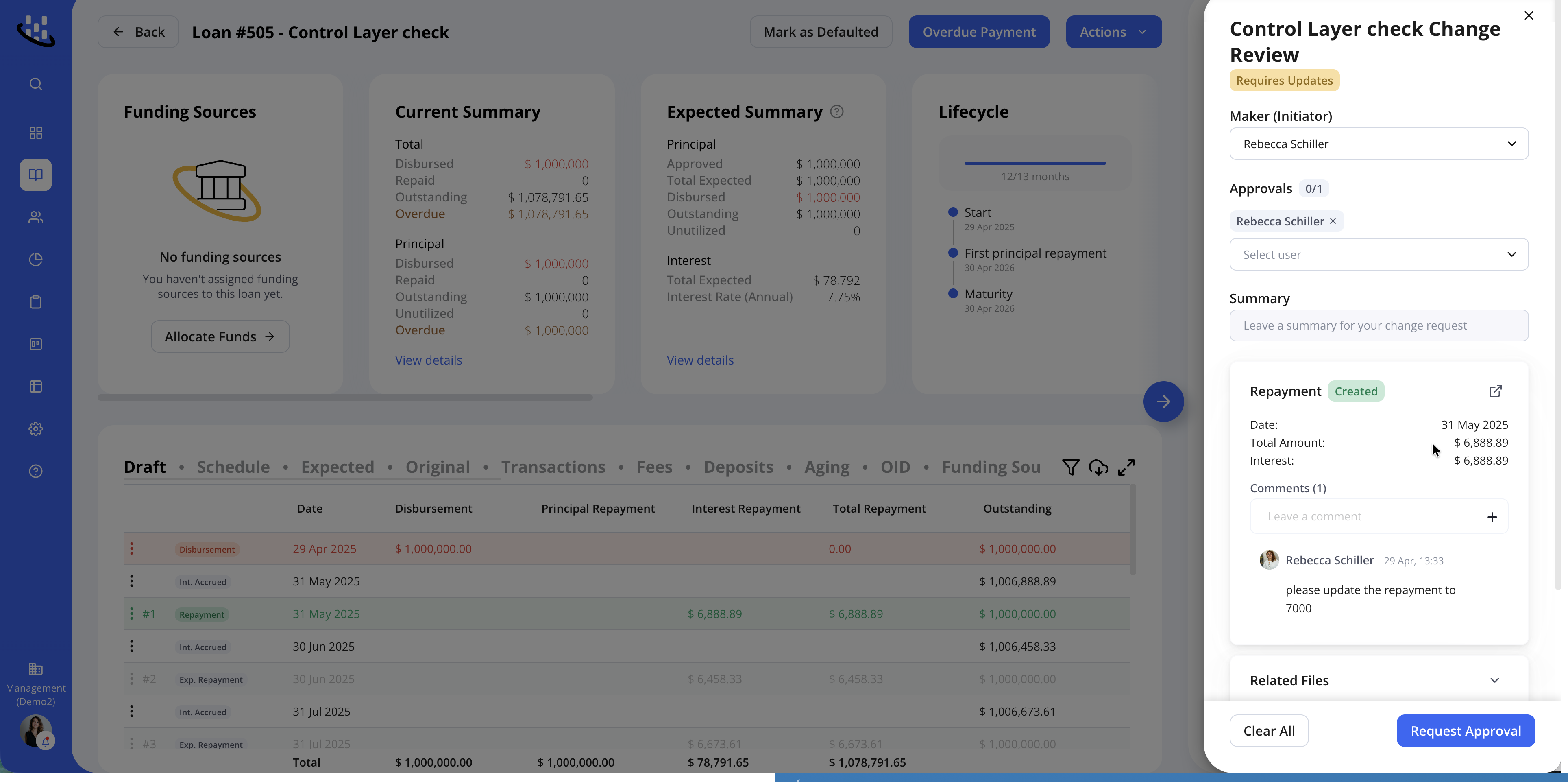
After review, the checker can:
Approve
Request Update
Reject
Approve a Request
To approve:
Open the request
Click Approve
Once Approved:
The maker is notified
The approved changes become available for activation or execution
Request an Update
If more information is needed, the checker clicks Request Update and adds a comment explaining what needs to be changed or clarified.
The status changes to Update Requested.
The maker then:
Opens the returned request
Makes the required updates
Adds a comment explaining what changed
Clicks Resubmit
The request returns to the checker queue.
Reject a Request
If the request should not proceed, the checker clicks Reject and adds a reason.
The status changes to Rejected, and the maker is notified. If needed, the maker can submit a new request.
Track History
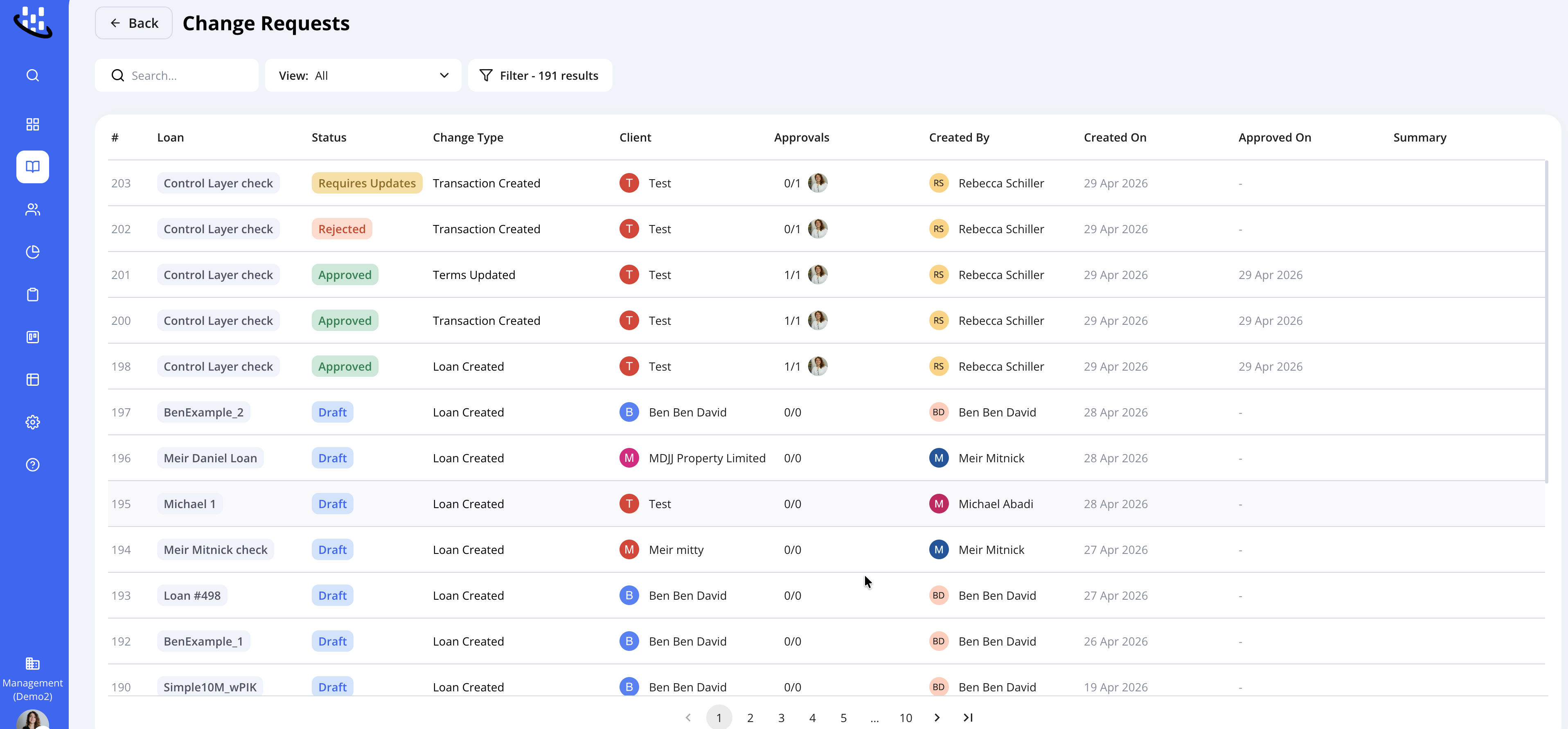
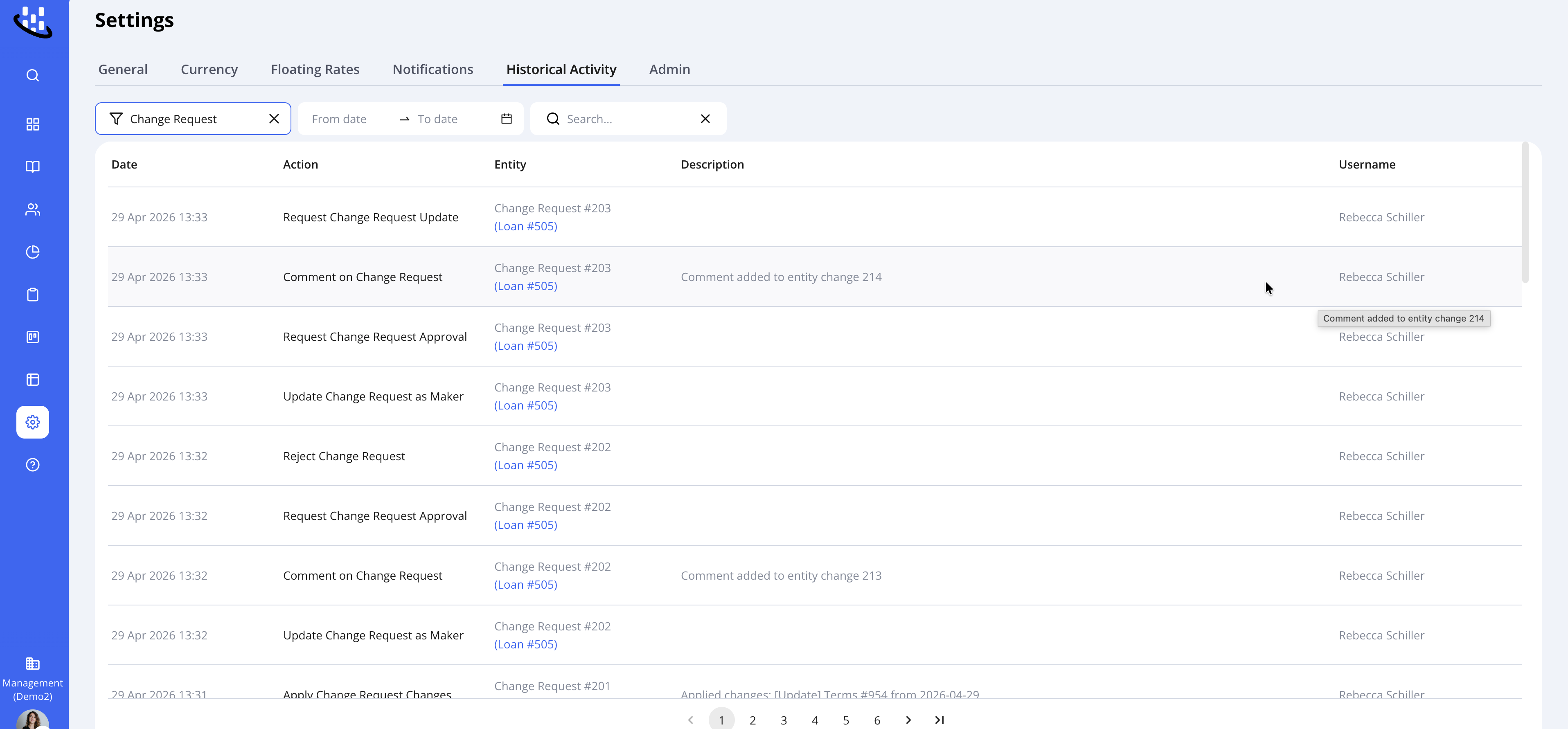
All Control Layer activity is automatically logged.
To review the audit trail, open the loan record and go to Control Layer or Activity History.
The history includes submissions, approvals, rejections, update requests, resubmissions, users, and timestamps.
Troubleshooting
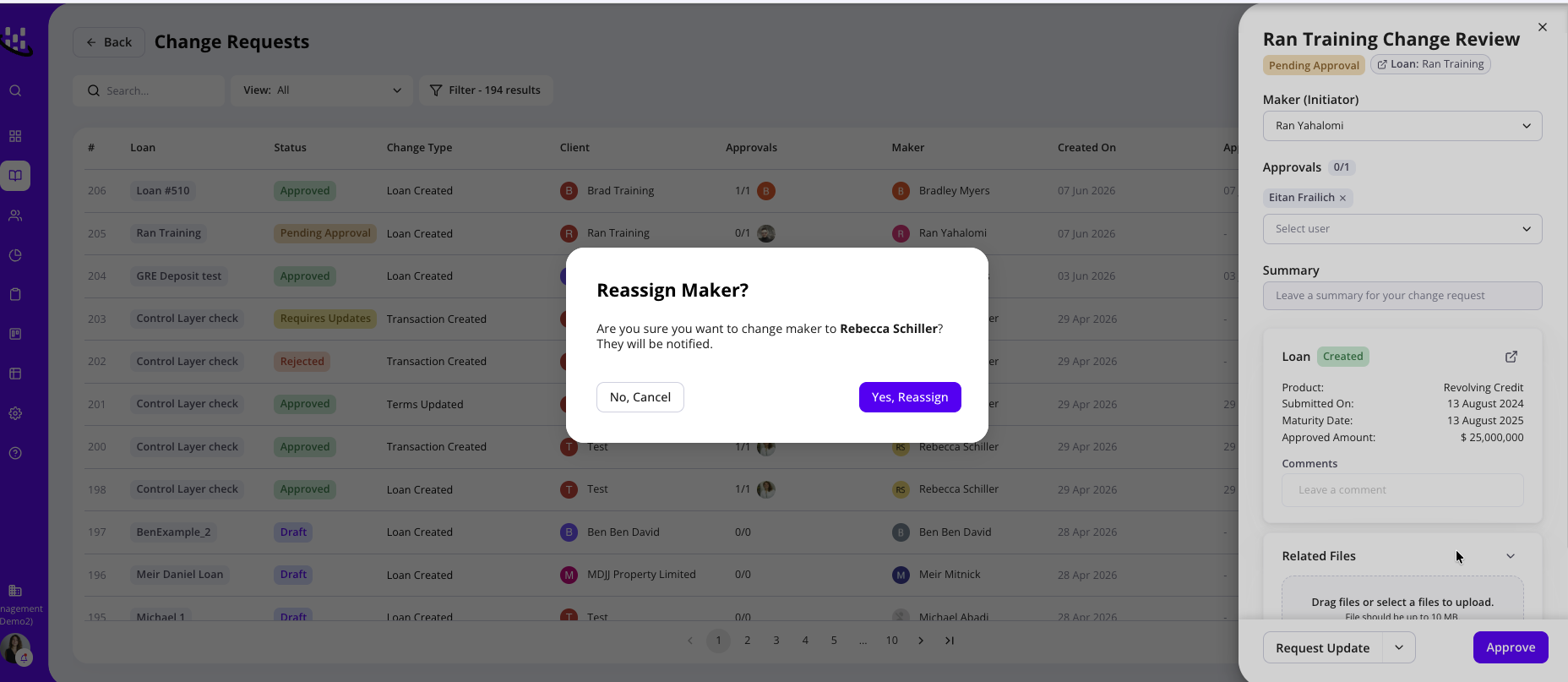
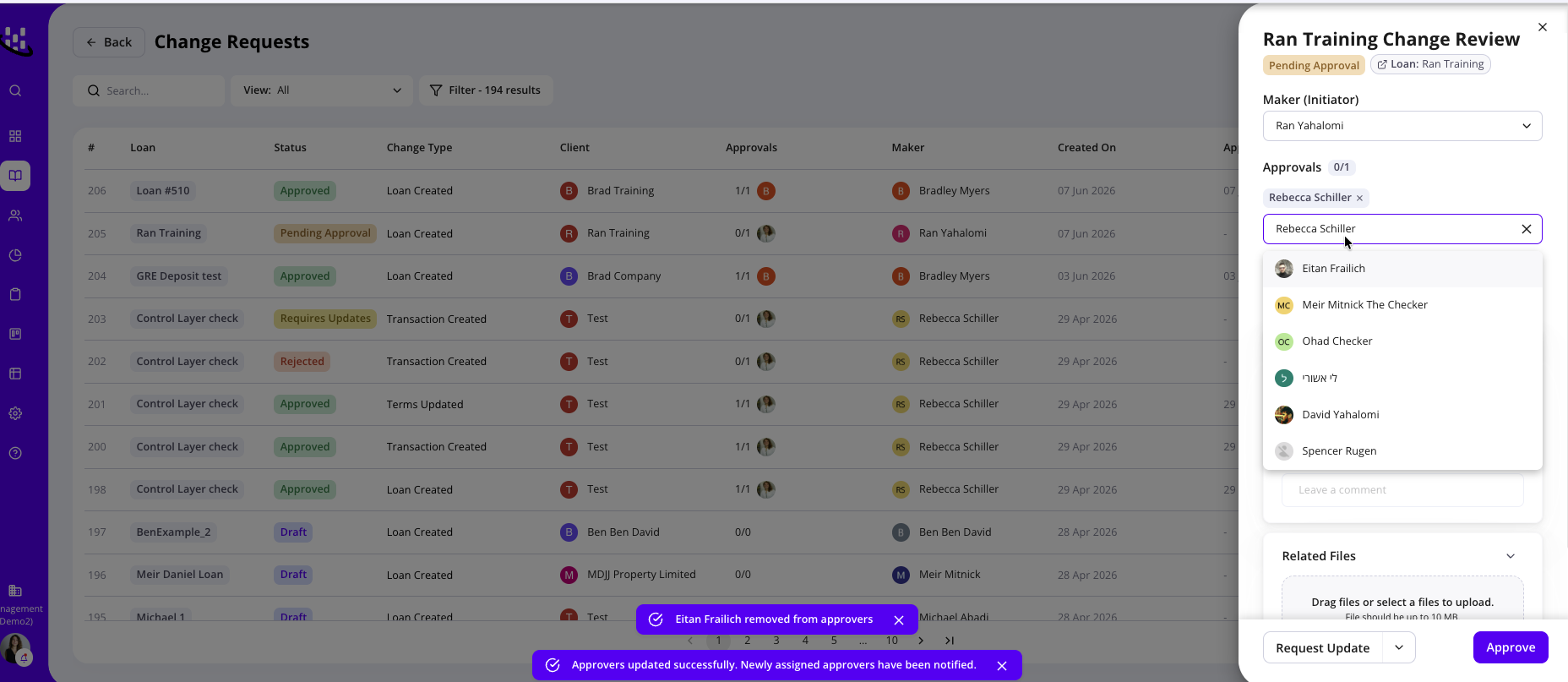
Maker/ Checker Unavailable
You can reassign both the Maker and the Checker if the assigned employee is out of office or unable to approve the request for any reason. Simply reassign the request to another employee, and the approval process can continue as normal.
Unable to approve change request
If a request is remaining in Draft status and you're unable to submit it for approval, please try reassigning the Maker to either the same user or a different user.
There may be an issue with the current Maker's profile that is preventing the request from progressing.