Borrower Forms
Last updated: May 14, 2026
Overview
Borrower Forms allows teams to collect borrower and investor data efficiently and track progress throughout the loan process.
Common use cases:
Creating Borrower Forms from the Workflow Page
Creating a Borrower form directly from the Borrower Form page
Use case 1: Create From Workflow Deal Card
Link a borrower form directly to a deal on the Workflow page

Select a form template you'd like to assign to this deal card
Optional: If a broker is attached to this deal, click 'send via broker' and assign the form to a configured broker.
Click on 'Email Options' before clicking 'Save' if you'd like to send an email to the borrower with a specific subject and email message
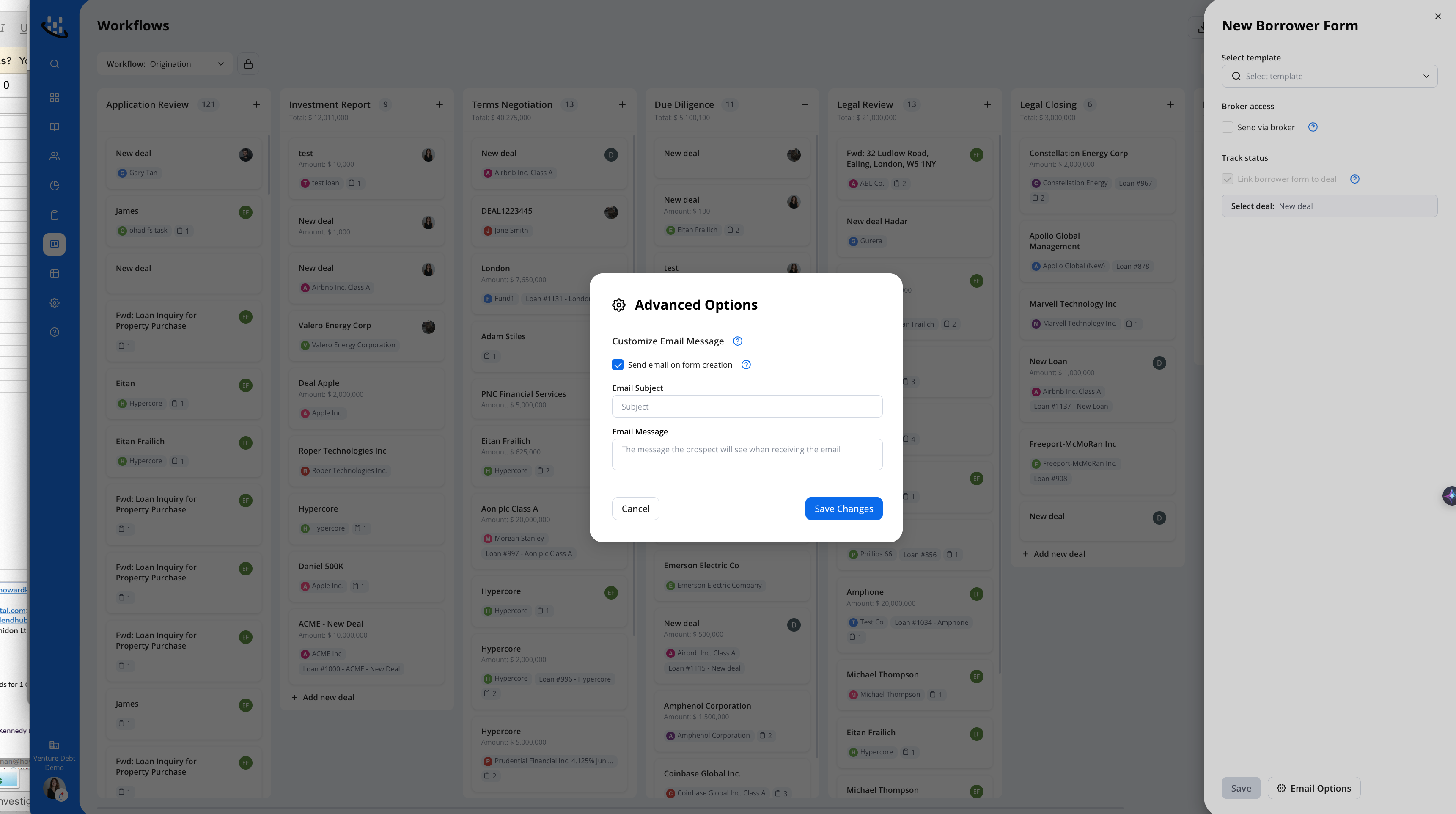
Once selecting 'save' the link will be shared to the client and to your clipboard. Your borrower can begin filling out your configured form
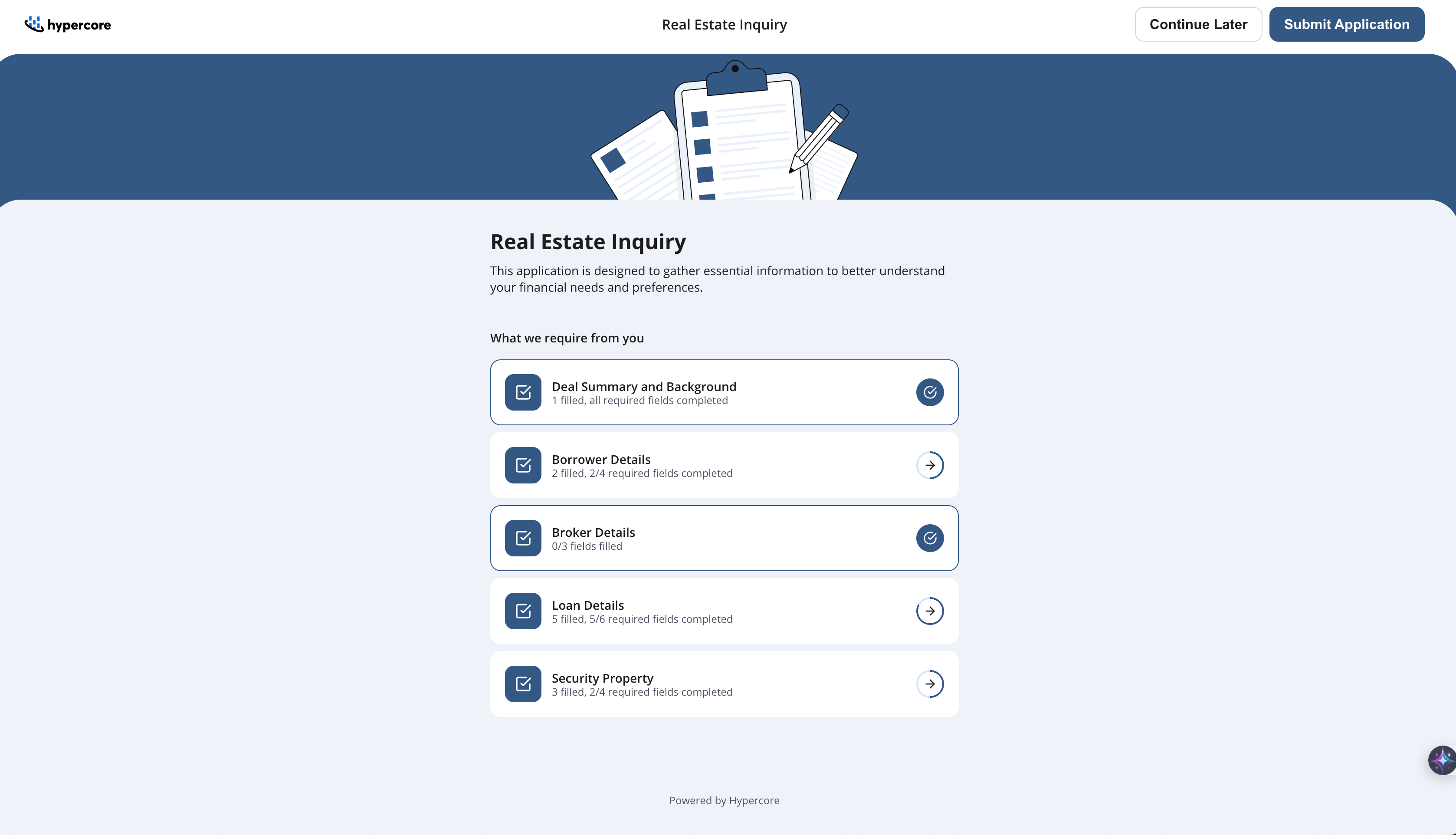
Review borrower responses once submitted:
View all borrower entered data
Edit fields directly in HC
Verify each section using the section verification button

Last Activity Tab
Provides a complete audit trail of actions taken on the form.

Settings Tab
Configure the email message associated with this borrower form.

Actions Menu (Top-Right)
Use the Actions button in the top-right of the form for quick actions such as:
Copy link - copy the form's public link
Archive
Delete
Mark Reviewed
Download CSV - export all form data as a CSV file

Overview Panel (Right Sidebar)
Displays form metadata, borrower details, and submission status.

Use case 2: Create a Borrower Form directly from the Borrower Form page
Accessing Borrower Forms
From the Hypercore dashboard, open the left sidebar and click Borrower Forms.

Create from Borrower Forms List Page
Click on New Borrower Form

In the right panel, choose a template from the preconfigured options
Select Client Access type:

Creating General Borrower Forms
Select General link under client access
If you want the form to automatically create a deal in Workflow, select: 'Auto Create Deals'. Then Select:
Which workflow to assign the deal to
Which stage of the workflow to assign the deal to
Choose which email options you'd like to configure the form with by clicking on 'Email Options'
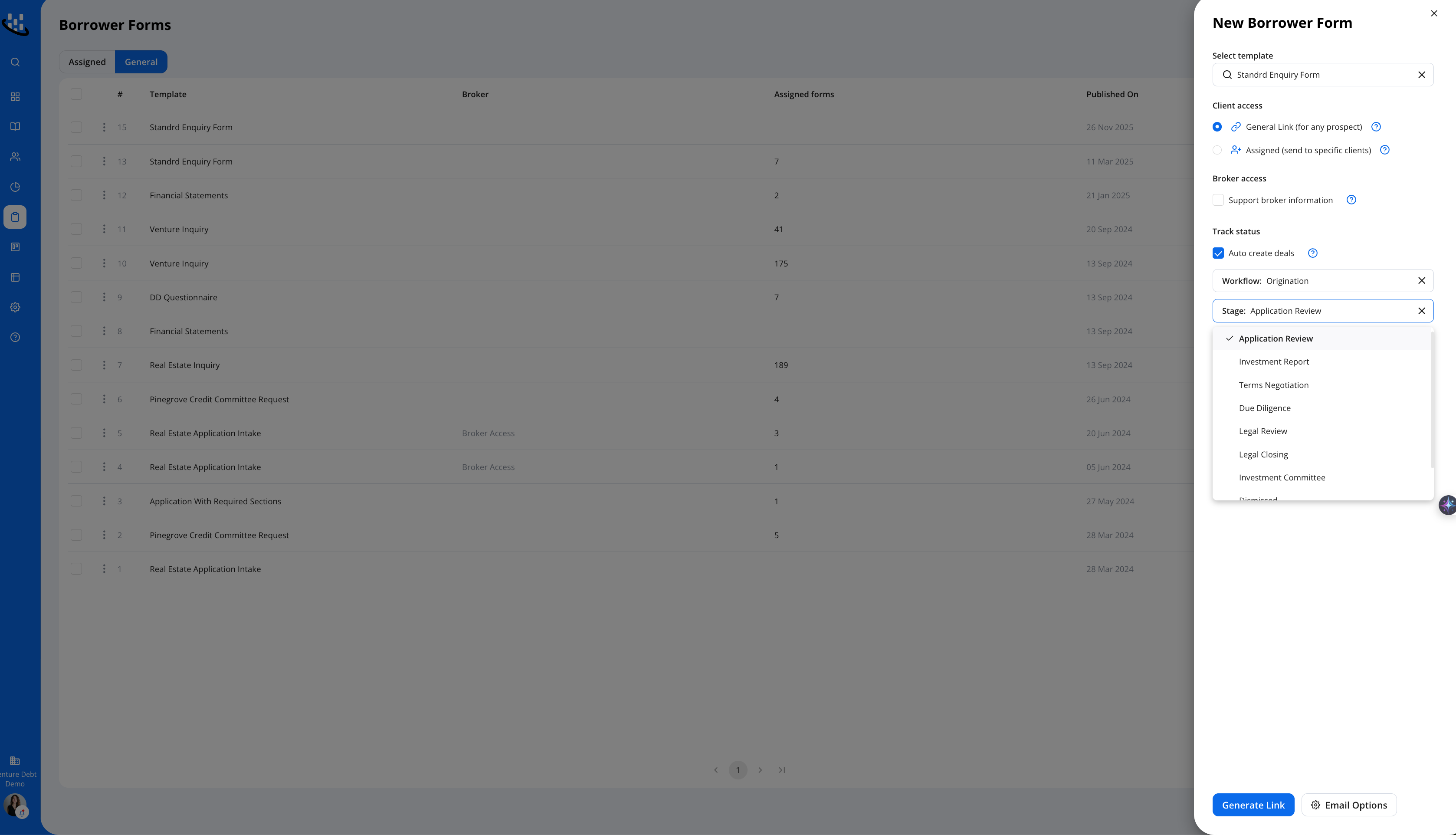
Click Generate link. The link is copied to your clipboard and the template appears under General Borrower Forms.

Borrowers who access the link will fill out their information.
If the email matches an existing client, Hypercore will auto-assign the submission to that client.

Managing General Form Templates
Open any template to view all related submissions
Available actions include Delete, Archive, and Copy link

General Form Overview
Here you can update initial settings. Hypercore also supports creating forms via email:
Copy the email listed under 'Create Forms via Email'.
Forward email to this email address
Add AI instructions if relevant e.g treat all values as USD
Hypercore will automatically pre-fill the form using AI.
AI is not always fully accurate; please review results before approving.

Create Assigned Borrower Forms Form
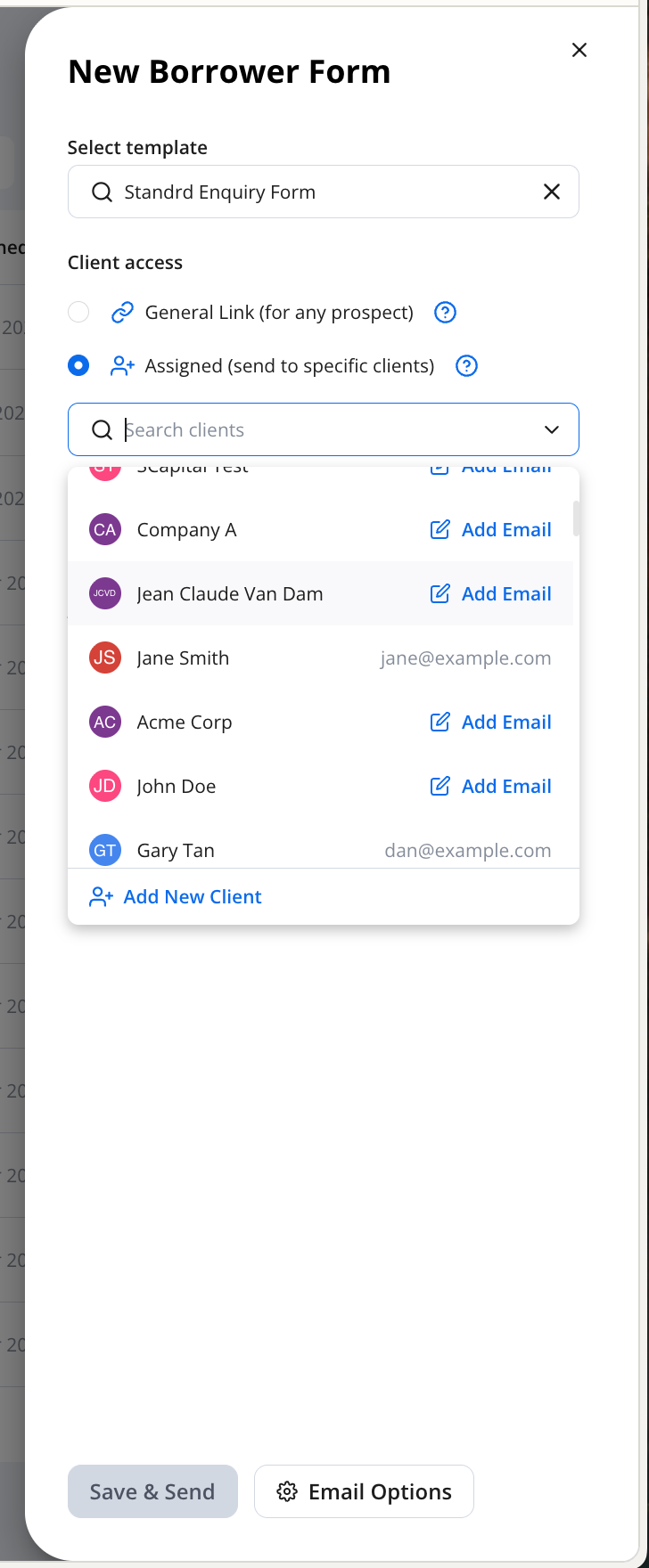
Under Client access, choose Assigned form
Search for relevant client and confirm their email is on the client record.
The remaining steps are similar to creating a General Form.
Submitted Assigned forms appear under Assigned Forms.
Select any submission to open the Borrower's form.
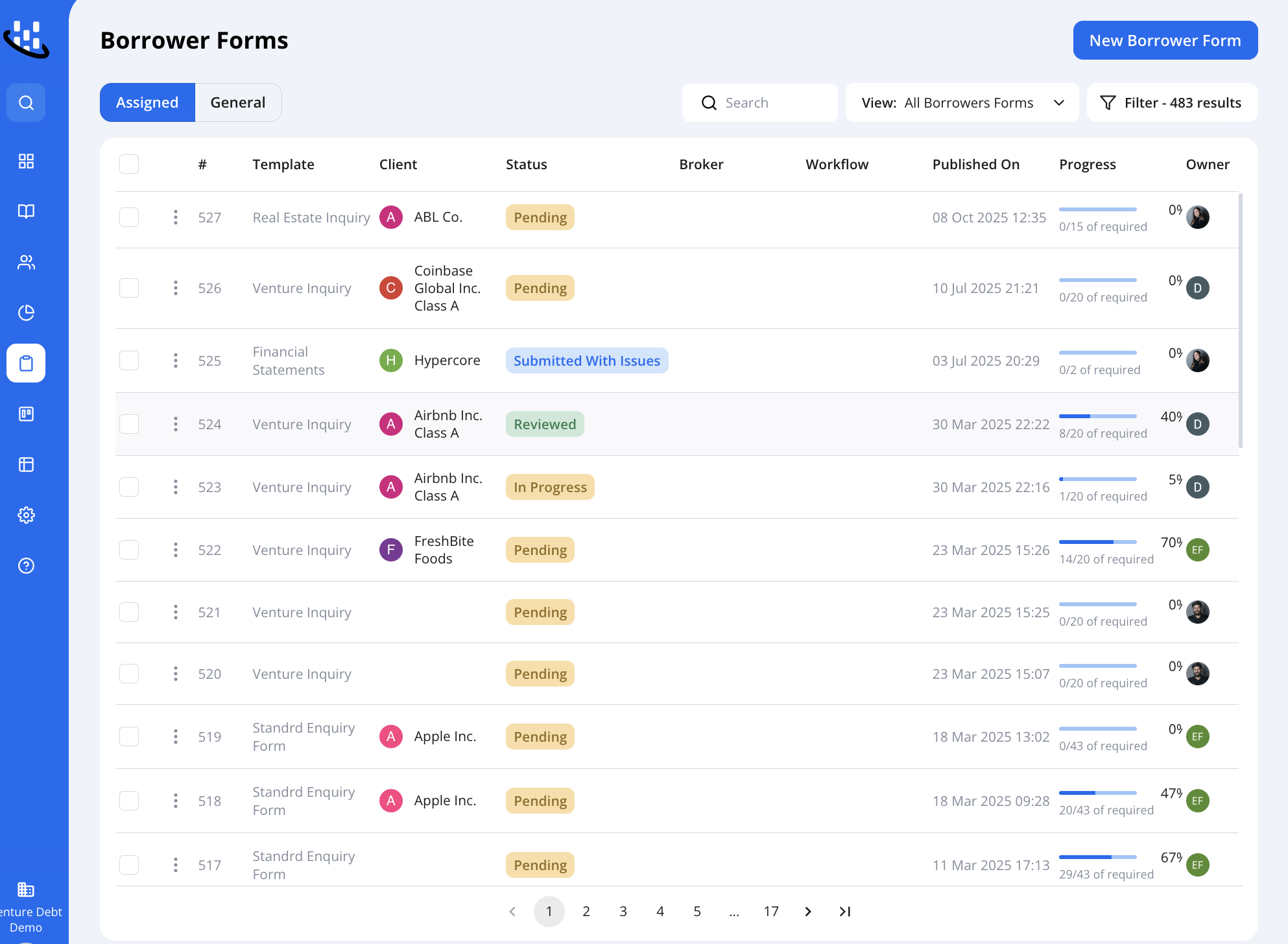
You can filter both Assigned and General forms using the built-in filter tools.

Requesting a New Borrower Form Template?
Custom Borrower Form templates are configured by the Hypercore support team.
How to request a new form
Fill out a template request form with your requirements.
Share the completed template with Hypercore Support at support@hypercore.ai
The support team will respond within 1–3 business days with scope and timeline.
Need Help?
For additional support, contact us at support@hypercore.ai.