Send statements with Statement Process
Last updated: September 23, 2026
What is a statement?
A statement is a document that summarizes detailed financial activity, helping you present accurate information to clients, investors, and other stakeholders. In Hypercore, statements can include loan details, funding sources, interest breakdowns, fees, and other financial data. They are useful for tracking performance and communicating financial updates clearly.
Common use cases
Notices — Regular updates to borrowers or investors
Early redemptions — Payoff calculations and settlement documentation
Invoices — Billing for interest, fees, or other charges
Investor communications — Summaries of positions, allocations, or activity
Audit and compliance — Historical loan activity for reporting purposes
Loan interest and fee statements — A breakdown of accrued interest and fees during a selected period
Types of statements
You can generate statements for:
Loans
Clients or borrowers
Funding sources
Funding entities or investors
Funding Entity - Generate one consolidated statement for the funding entity
Funded Loans - Generate a separate statement for each funded loan (funding source)
Statement Process covers the full statement process in Hypercore:
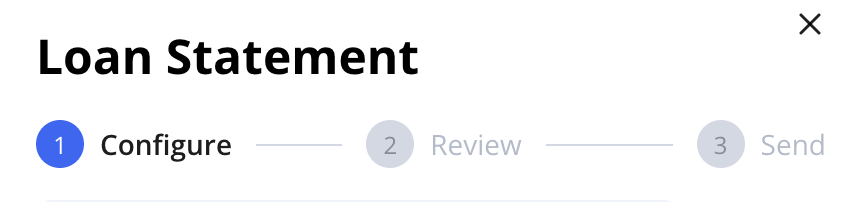
Configure → Review → Send. You can generate one statement or a large batch, review and approve each file, send statements directly from Hypercore, and track the full history of every statement.
In this guide, you will learn how to:
Set up statement recipients
Generate statements individually or in bulk
Review and approve statements before sending
Send statements by email
Track active and completed statement processes
Before you start
Before your first statement process, check the following:
Contact email: Your organization must have a contact email in Settings → Organization Details. This address is used as the reply-to address for statement emails. Sending is blocked if it is missing.
Organization image: Add an up-to-date organization profile image or logo. It is used to represent your organization in statement emails.
Templates: Confirm that the required statement templates are available. Browse the Statement templates gallery, or contact your Customer Success representative to create or adjust a customized statement for your needs.
Step 0: Set up statement recipients
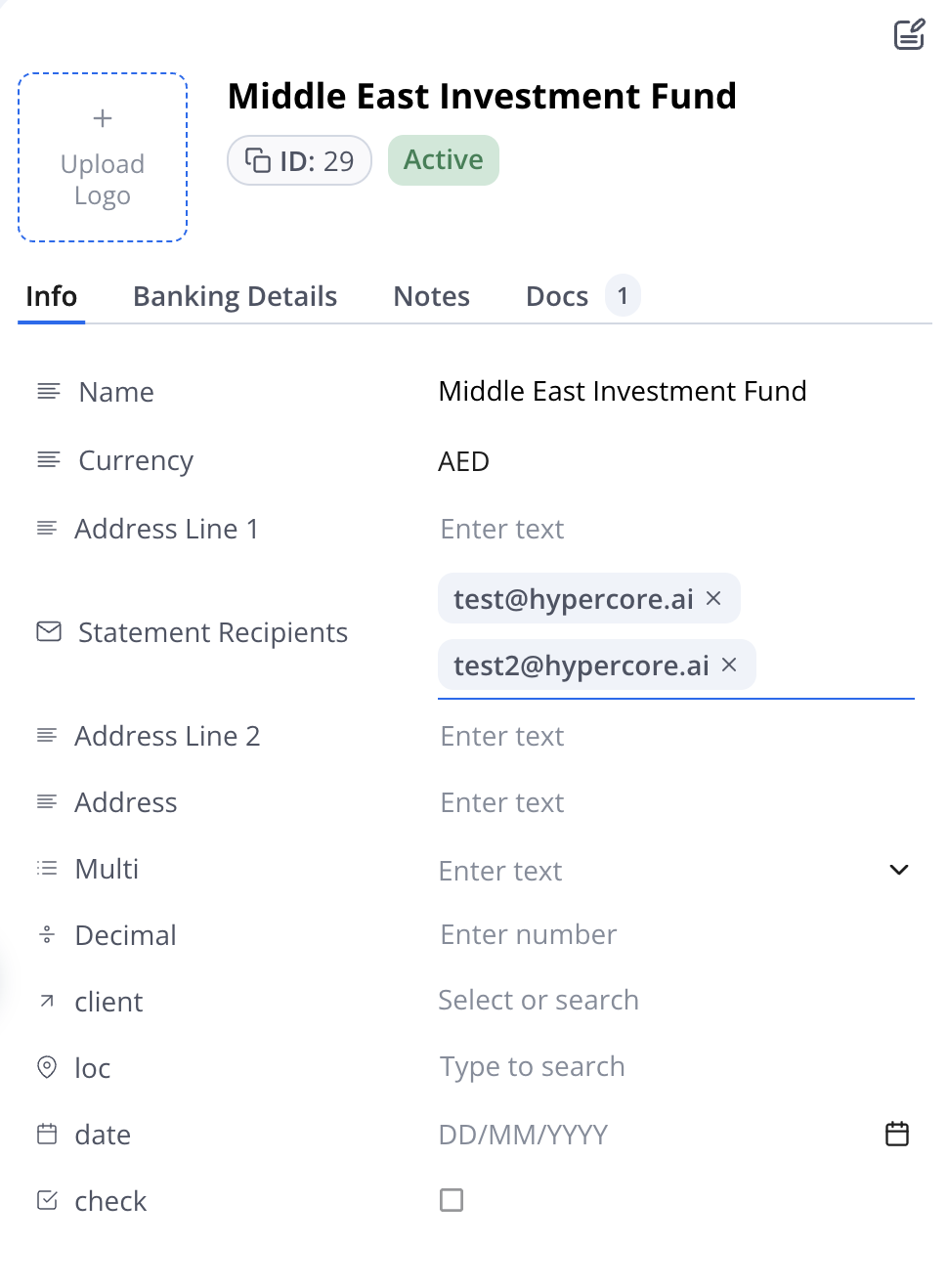
Statement recipients are the email addresses that receive a statement. You can configure recipients on loans, clients, funding sources, and funding entities.
Open the relevant entity.
Find Statement recipients in the right sidebar.
Enter an email address and press
Enter.Repeat to add as many recipients as needed, or paste several addresses at once.
Click the
xon a recipient chip to remove it.
Recipient inheritance: If a loan has no recipients of its own, it inherits the client or borrower's recipients.
If a funding source has no recipients, it inherits the funding entity's recipients.
Add recipients at the parent level when the same people should receive statements for multiple related records, and override them only when needed.
Bulk Recipient updates: Statement recipients can also be updated in bulk using Operations > Bulk Actions & Imports. Use the relevant import - Loan Info, Borrowers, or Funding Entities - and update the Statement Recipients column.
Step 1: Configure and generate
You can start statement generation in bulk from the relevant entity list, or from a single entity page.
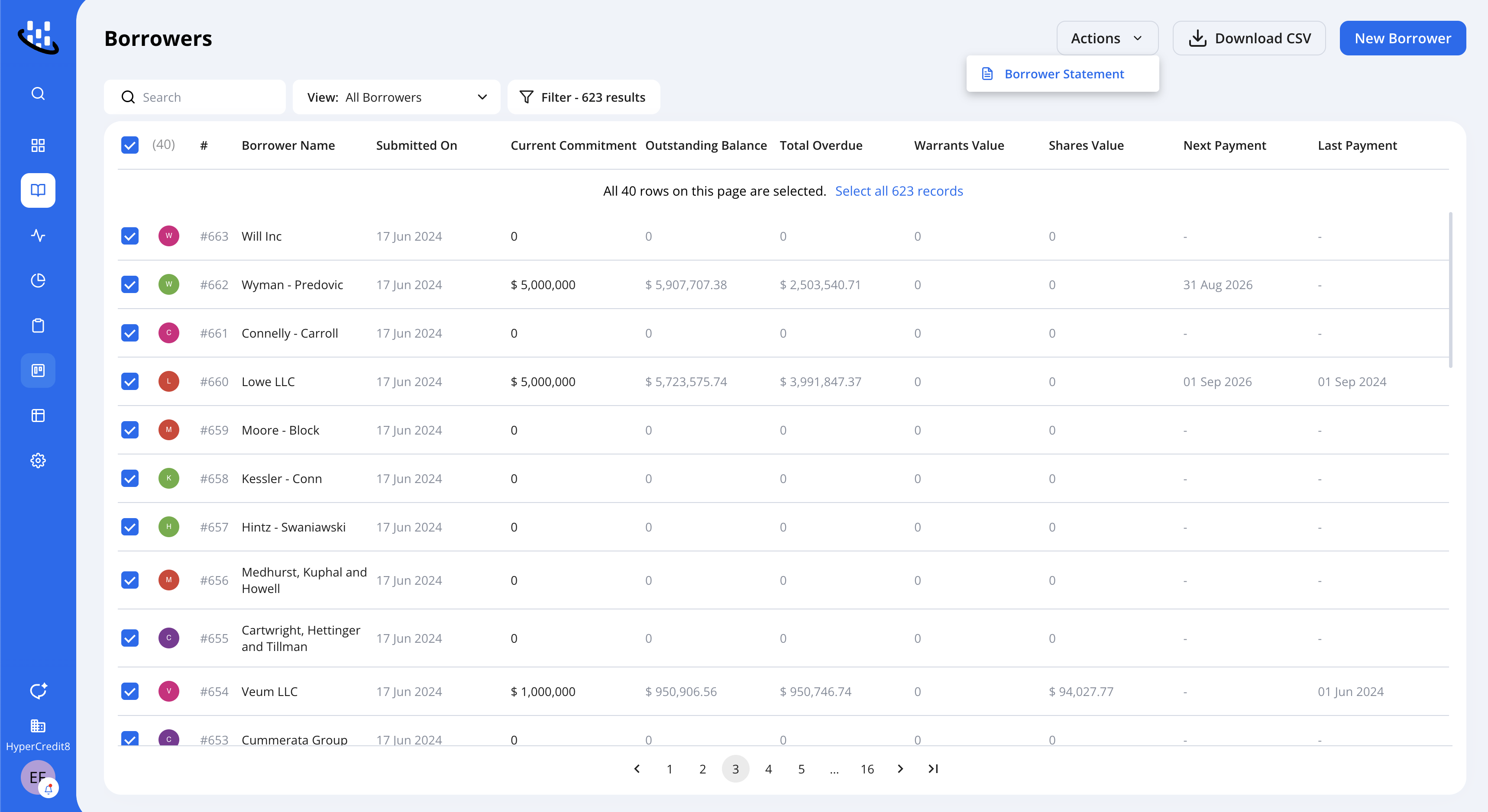
Generate statements in bulk
Open the relevant Loans, Clients, Funding Sources, or Funding Entities list.
Select the entities you want to include.
Open Actions and click Generate statement.
Generate a statement for one entity
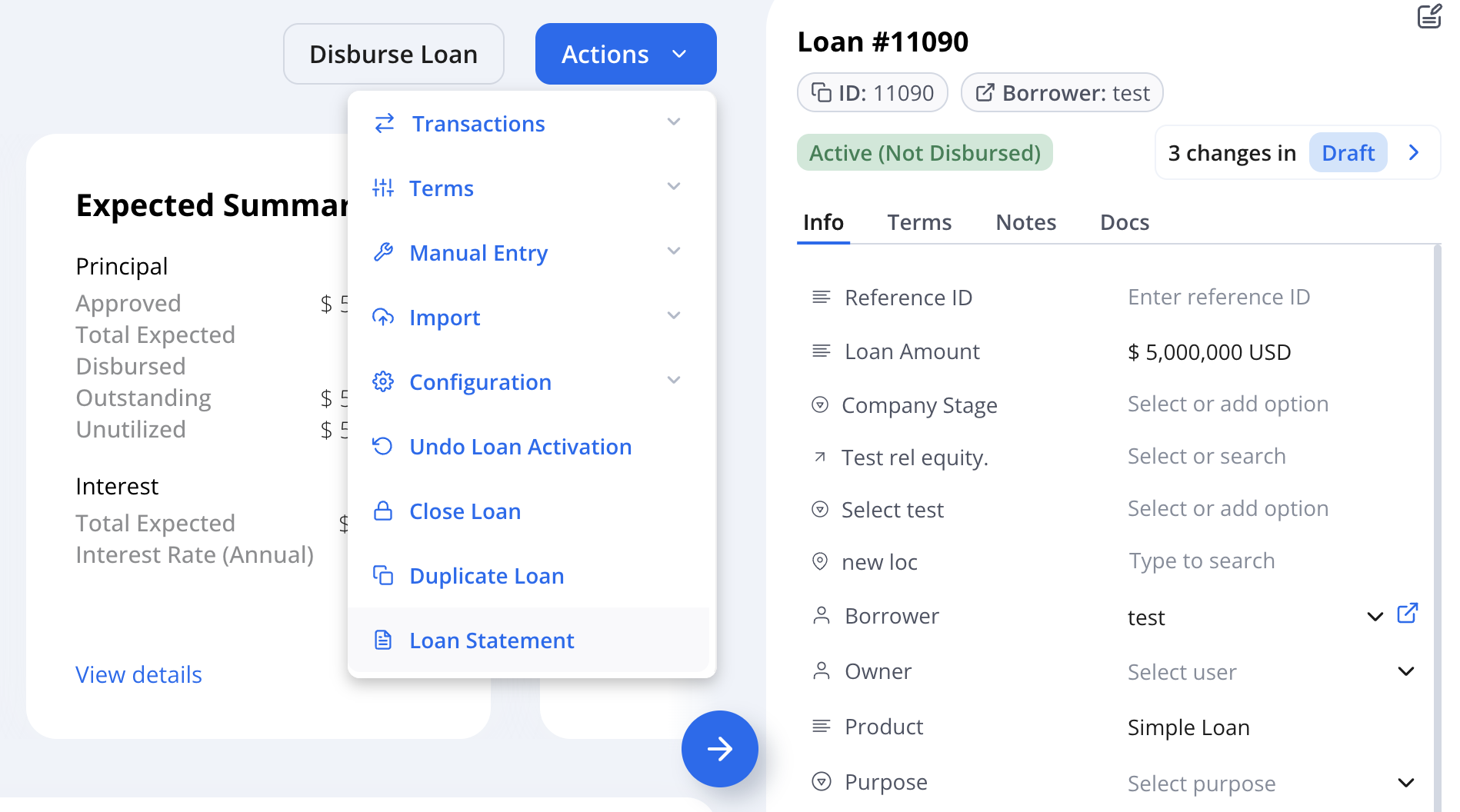
Open a specific loan, client or borrower, funding source, or funding entity, and select Actions -> Generate statement from that record.
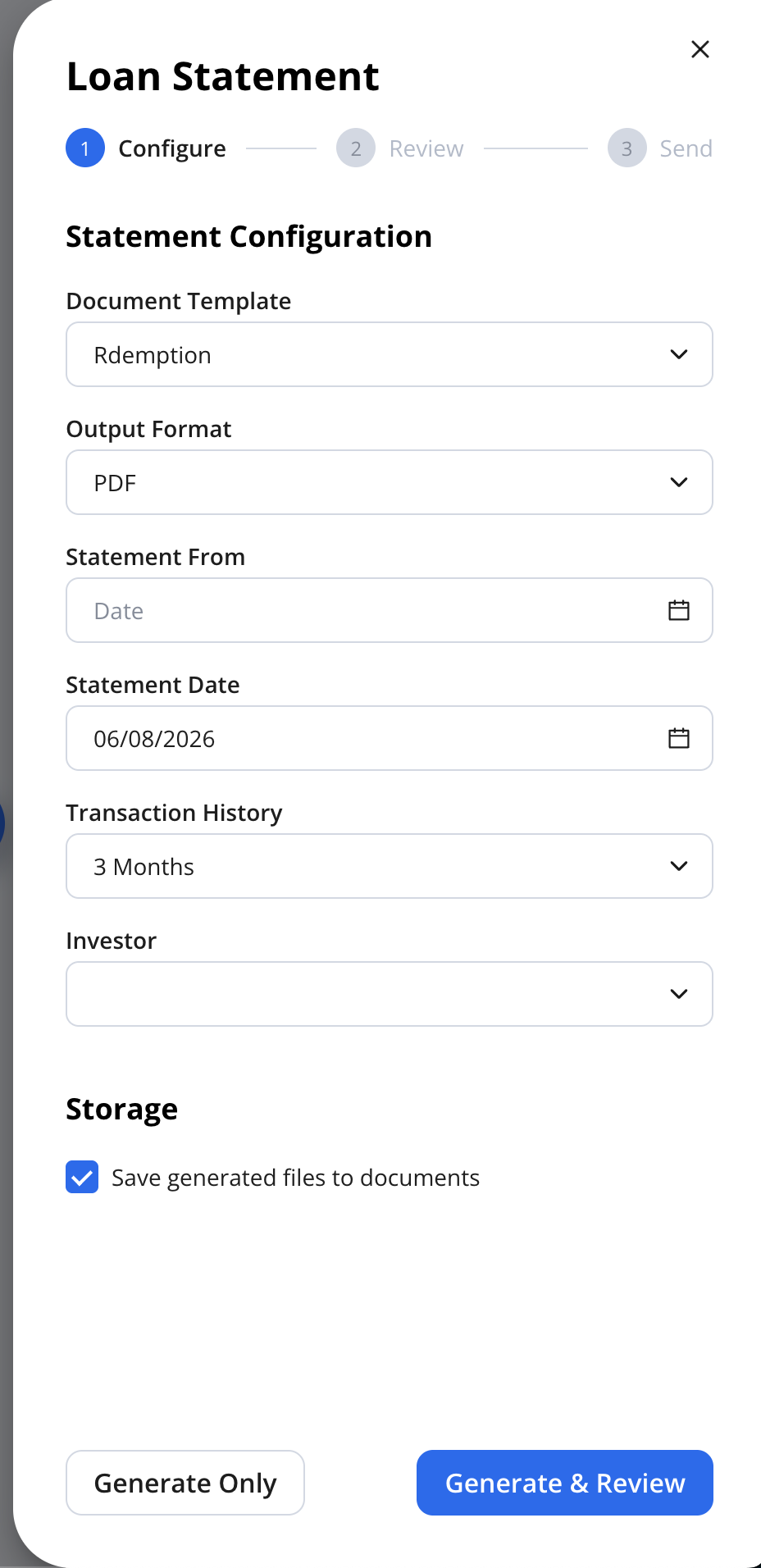
Configure the statement
In the Configure step, select the required inputs:
Field | What it controls |
|---|---|
Template | The statement template to use |
Output format | PDF or DOCX |
Statement date | The date the statement is calculated to |
Transaction history | The amount of transaction history to include |
Save generated files to Documents | Save a copy of the document under the related entity's |
Then choose one of the following actions:
Generate & Review - Starts the full statement process and opens the batch for review before sending.
Generate Only - Generates the files without starting the review and email-sending process.
Large batches can take time to generate. You can leave the page and continue working. Hypercore alerts you when the statements are ready for review.
Step 2: Review and approve
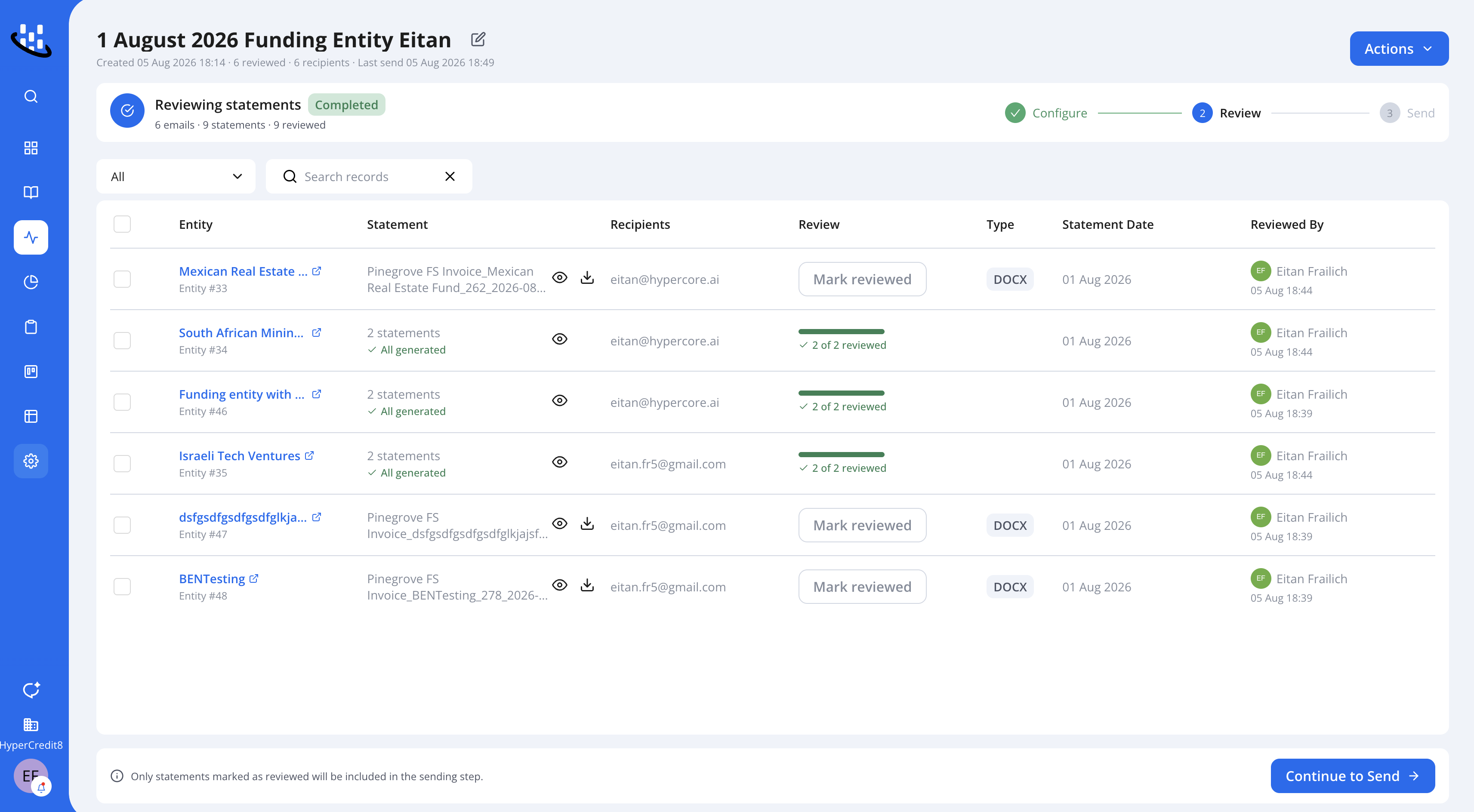
The Review page is where you verify each statement before it can be sent. Every statement must be reviewed and marked as reviewed before it appears in the Send step.
The recommended approach is to review statements one by one:
Click a statement row to open the Statement Details drawer.
Review the statement preview.
Confirm the recipients and email content.
Click Mark reviewed or Mark and Continue.
Move to the next statement until the batch is complete.
You can also select multiple statements and mark them as reviewed in bulk. Bulk review is useful for larger batches, but reviewing each statement individually is recommended when the content requires verification.
Work with a statement in the drawer
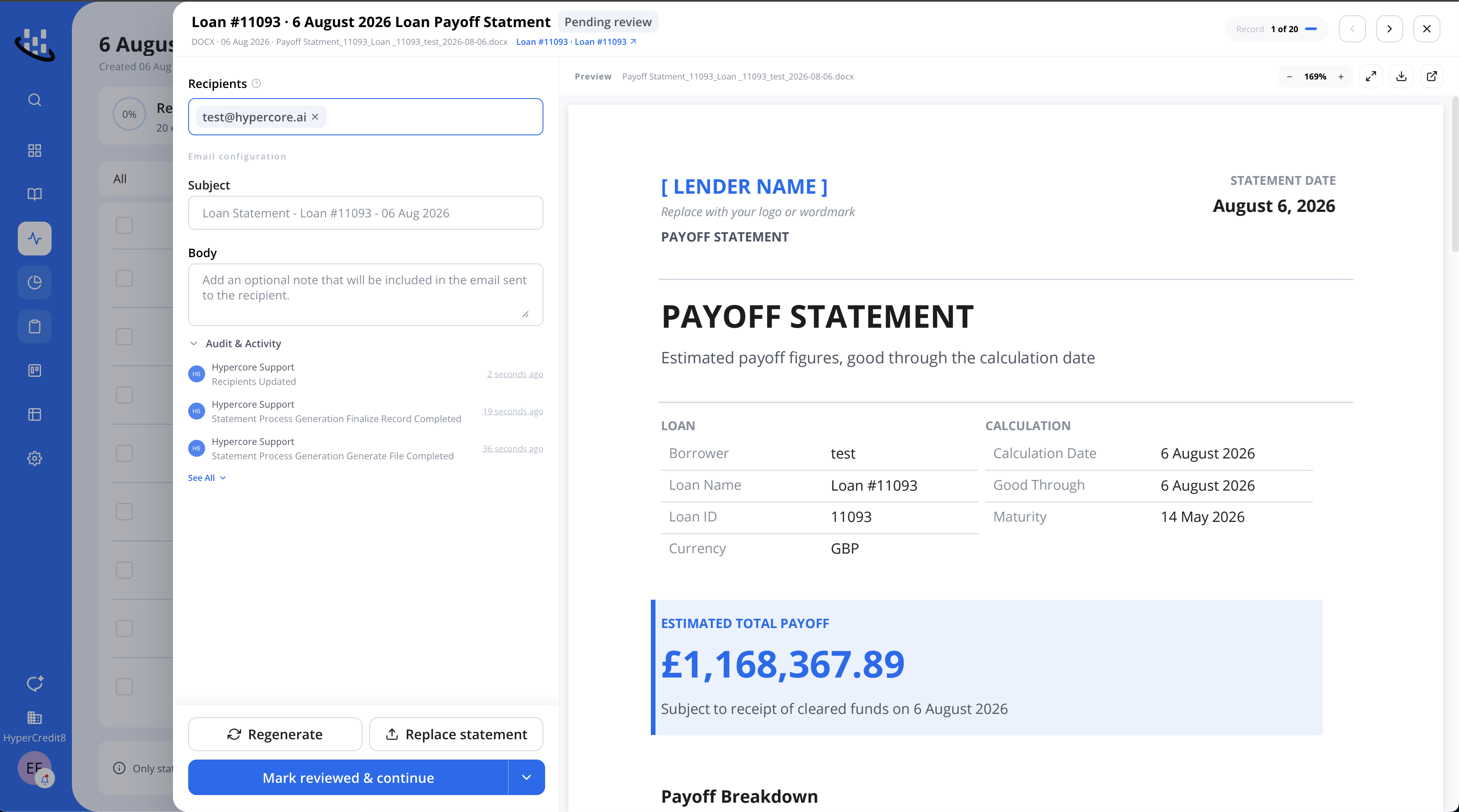
The Statement Details drawer includes the statement preview and the actions needed to prepare it for sending. From the drawer, you can:
Edit the recipients
Edit the email subject or body
Download the statement
Regenerate the statement
Replace the generated file with a corrected file
Remove the statement from the process
Mark the statement as reviewed or not reviewed
Move between statements in the batch
If a statement needs correction, use Regenerate, Replace file, or Remove from process, depending on the issue.
Every action is recorded in the statement's audit trail, including who made the change and when. Previous versions remain available when a statement is regenerated or replaced.
Batch actions
From the Review page, you can also:
Download all statements as a ZIP file
Delete the full statement process
Select statements and mark them reviewed or not reviewed in bulk
Search or filter the batch to find statements that still need attention
When you are ready, click Continue to Send.
Only reviewed statements move to the Send step. Statements that are unreviewed, missing recipients, still generating, or failed remain in Review.
Step 3: Send
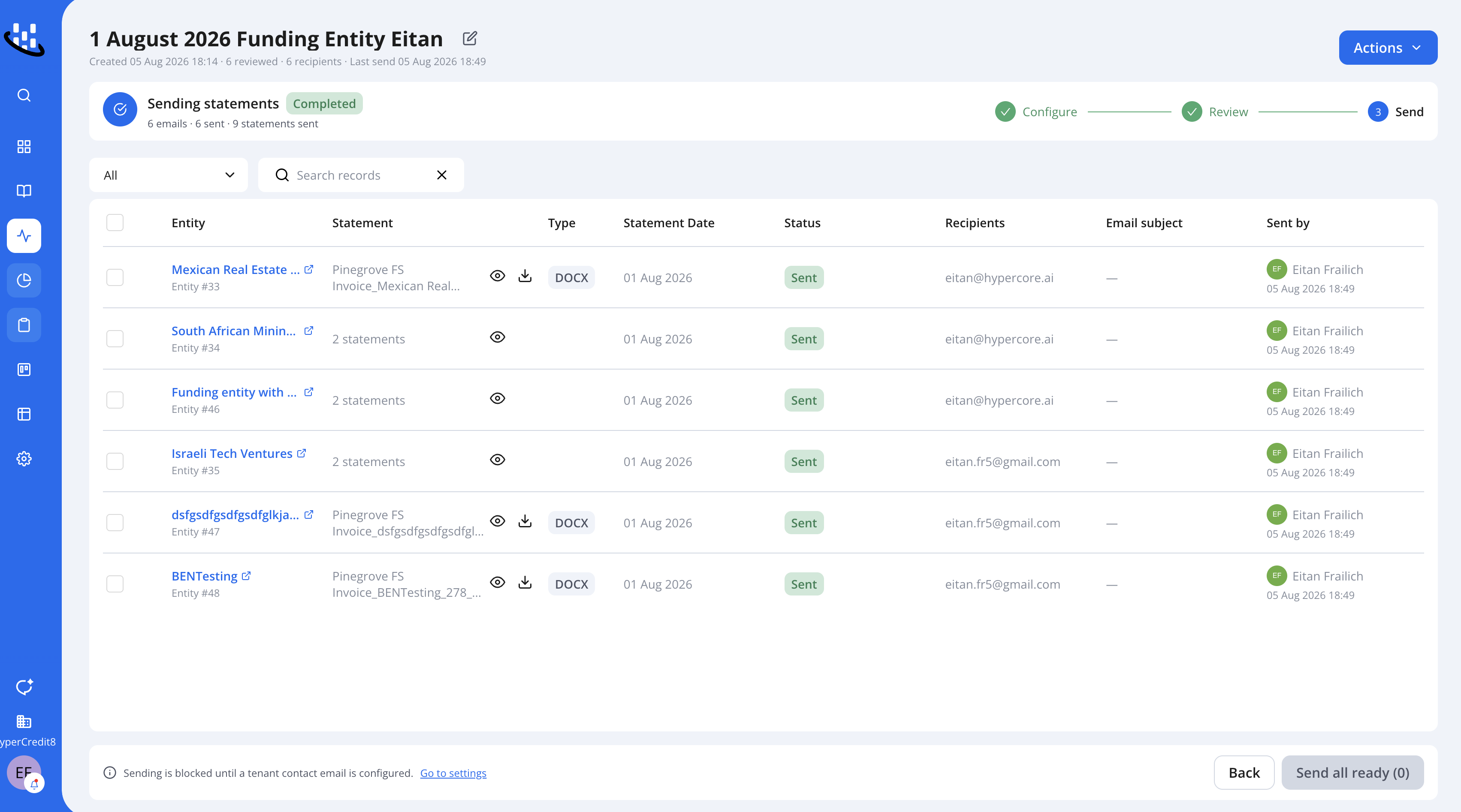
The Send step focuses on delivery. Only statements that were marked as reviewed appear as ready to send.
You can:
Click Send All Ready to send every reviewed statement in the process.
Select specific statements and click Send Selected to send only those records.
Return to Review if a statement needs another change.
Sending runs in the background. Each statement updates to Sent or Failed. Hover a failed status to see the reason, correct the issue, and send it again.
Tip: Your organization's contact email must be configured before you can send. If it is missing, all sending actions are blocked until it is added in Settings → Organization Details.
What your recipients receive
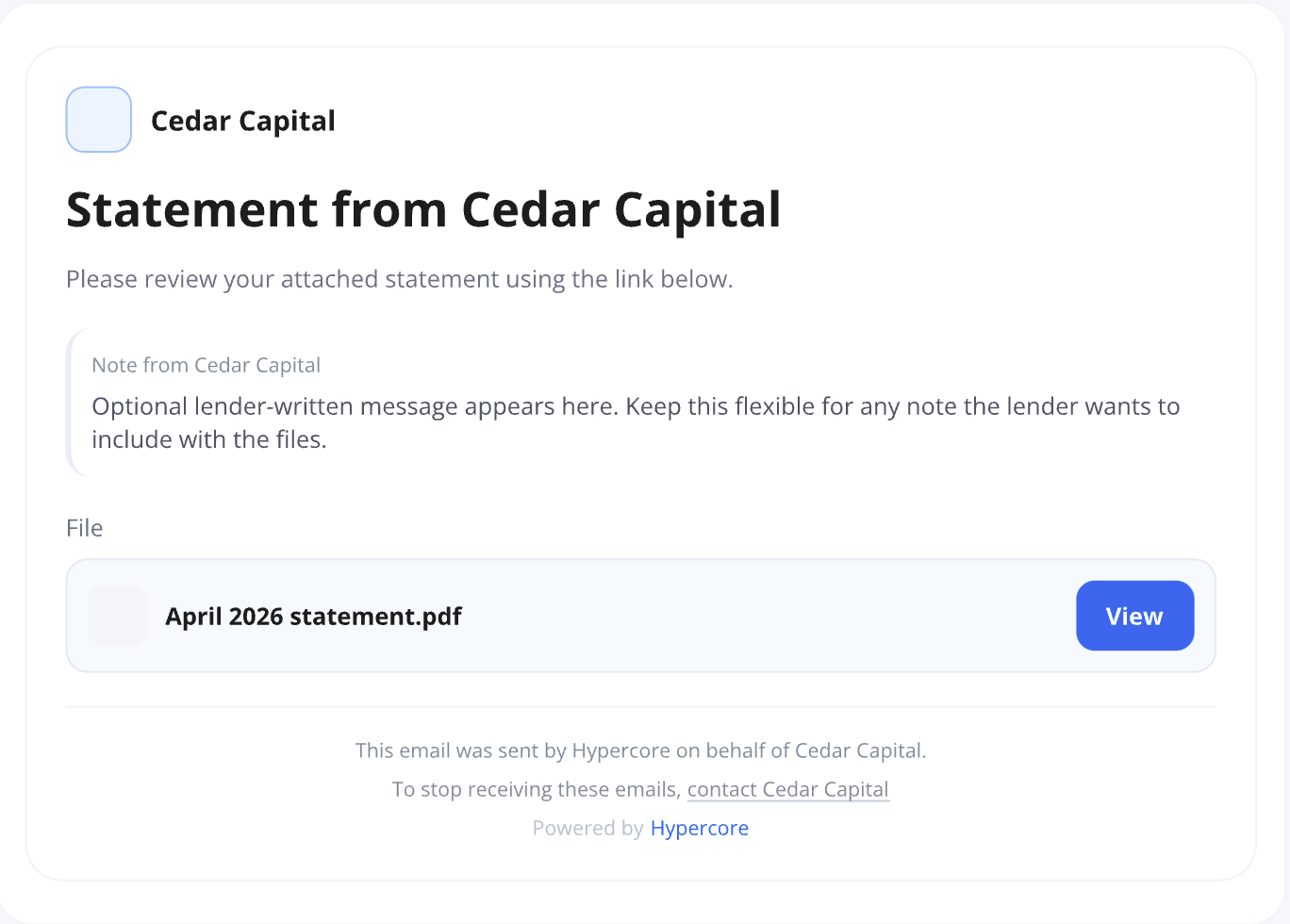
Recipients receive a statement email branded with your organization's name and profile image. The email includes the statement file and any optional note added during review.
The sender is presented as your organization.
Replies go to your organization's Contact Email.
Recipients can open the attached statement from the email.
The footer explains that Hypercore sent the email on your organization's behalf.
Track statement processes
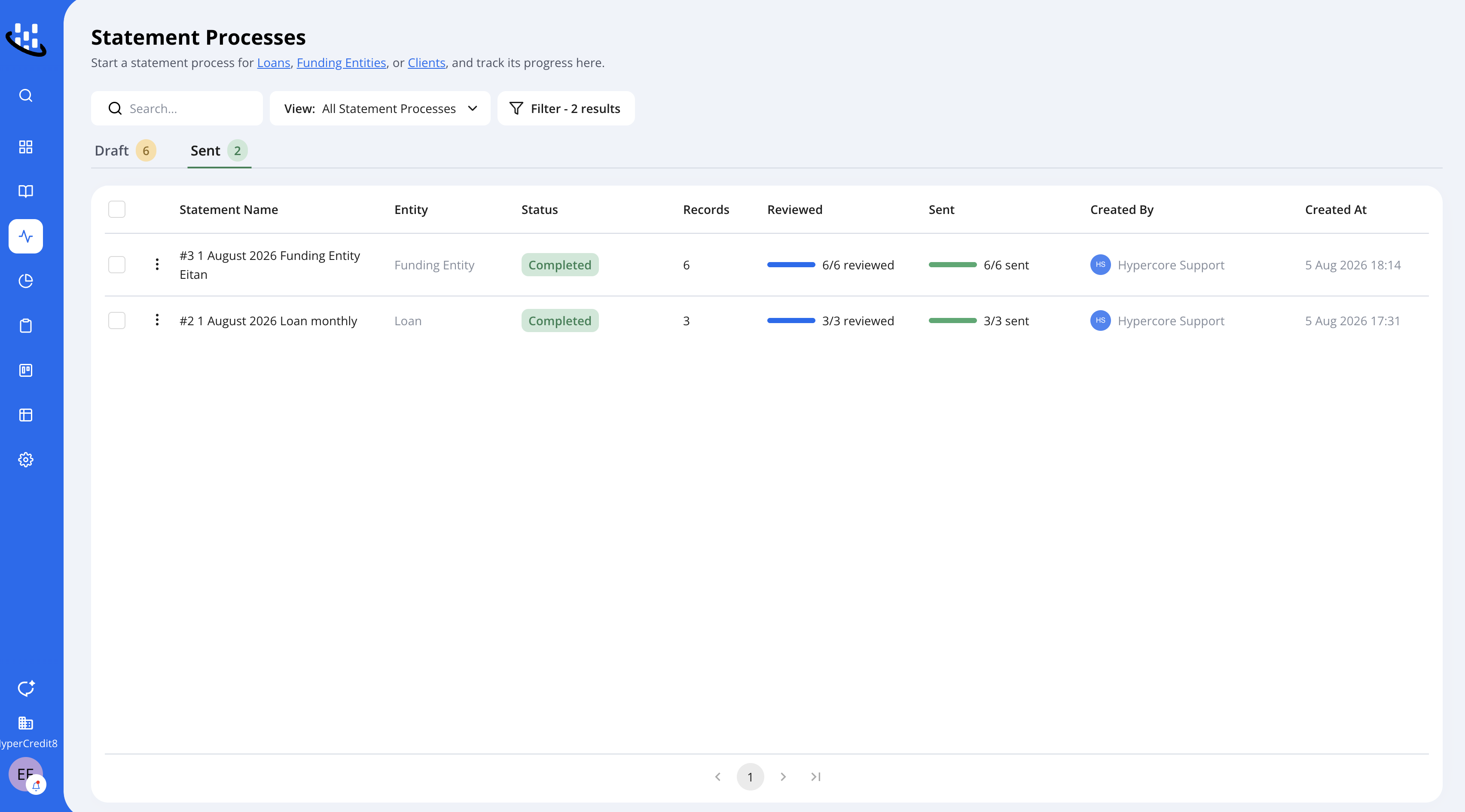
Go to Operations → Statements to see every statement process that has been started.
The page separates processes into two tabs:
Tab | What it contains |
Draft | Processes that are still generating, in review, or ready to send |
Sent | Processes that are currently sending or already completed |
Click a row to reopen the process and continue from its current step. You can also search, filter, or delete statement processes from this page.
Use this page to answer questions such as:
Which statement batches are still being reviewed?
Which processes are ready to send?
Which statements have already been completed?
Who created or last updated a process?
Troubleshooting
A statement is missing recipients.
Add recipients in the Statement Details drawer or on the related entity. If the entity inherits recipients from a parent, confirm that the parent recipients are correct. The statement cannot be marked as reviewed until it has at least one valid recipient.
A statement shows Failed in Step 2.
Statement generation failed. Hover the failed status to see the reason, then regenerate or replace the file. Contact Hypercore Support if the problem continues.
Sending is blocked.
Your organization does not have a contact email. Add one in Settings → Organization Details, then return to the process.
A statement shows Failed in Step 3.
The email was not sent. Hover the failed status to see the reason, correct the recipient or email details if needed, and send the statement again.
A statement does not appear in the Send step.
Only reviewed statements move to Send. Return to Review and check whether the statement is unreviewed, missing recipients, still generating, or failed.
Generation is taking longer than expected.
Generation continues in the background. Hypercore notifies you when the batch is ready, and you can also check its progress under Operations → Statements.
Frequently asked questions
Can I generate a statement without using the review and send process?
Yes. Select Generate Only in the Configure step.
Can different team members generate, review, and send?
Yes. Generate, review, and send permissions can be assigned separately.
Can I add multiple recipients to one statement?
Yes. Add as many valid recipient email addresses as needed.
Does the recipient see that Hypercore sent the email?
The email is branded as your organization. The footer states that Hypercore sent it on your behalf, and replies go to your organization's contact email.
Can I edit a statement after it has been sent?
No. Sent statements are read-only. Create a new statement process if a correction is required.
Where are generated statement files saved?
If Save generated files to Documents was selected, Hypercore saves them in a /Statements/ folder under the related entity. You can also download individual files or the full batch as a ZIP file.
How can I create a customized statement template?
Contact your Customer Success representative to create or adjust a statement template for your organization's needs.
How to create a custom statement Template?
Hypercore offers a Statements Gallery with predefined templates for common use cases. If you'd like access to the gallery, or if you require a new type of statement tailored to your needs, please contact our support team at support@hypercore.ai.
Glossary
Term | Meaning |
Statement process | A tracked process from statement configuration through review and delivery |
Statement record | One statement for one entity inside a process |
Statement recipients | The email addresses that receive a statement |
Contact Email | The organization's reply-to address, configured in Organization Details |
Reviewed | A statement that has been checked and approved for sending |