Data Tables and Dynamic (Custom) Properties
Last updated: May 14, 2026
Using Additional Info (Dynamic Properties) and Data Tables in Hypercore
Overview
Hypercore allows users to enhance system data using custom fields and data tables. This guide explains the difference between hardcoded fields and customizable fields (“Additional Info”), how to create them, and when to use a dynamic property versus a data table.
1. Additional Info (Dynamic Properties)
What Is It?
Dynamic properties (also called “Additional Info”) allow users to store custom data for any entity in Hypercore-such as loans, clients, funding sources, equity, and more.
Where to Find It
Navigate to any entity (e.g., a loan or client)
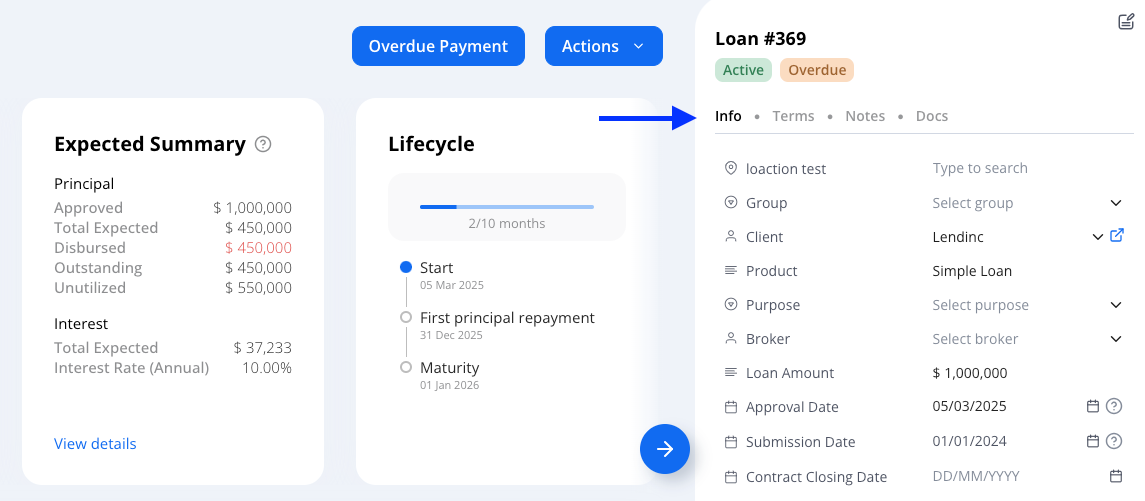
Find the “Info” tab on the right panel
Field Behavior
Hardcoded fields (e.g., Client, Product, Purpose, Loan Amount) cannot be modified
Dynamic fields can be renamed or deleted
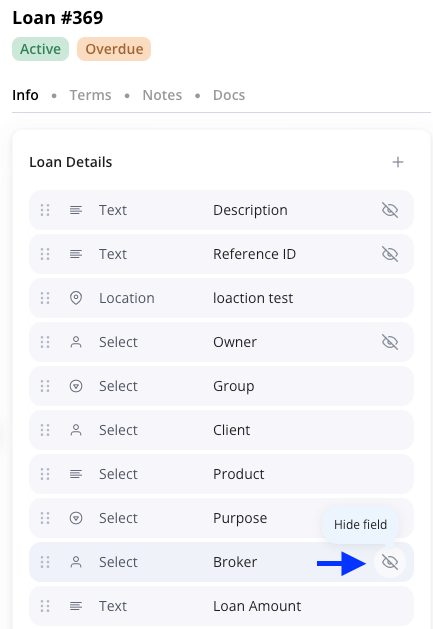
All fields, whether hardcoded or dynamic can be hidden (by clicking on the eye symbol when hovering to its right) or reordered (by drag and dropping the left side of the field).
Creating a New Field
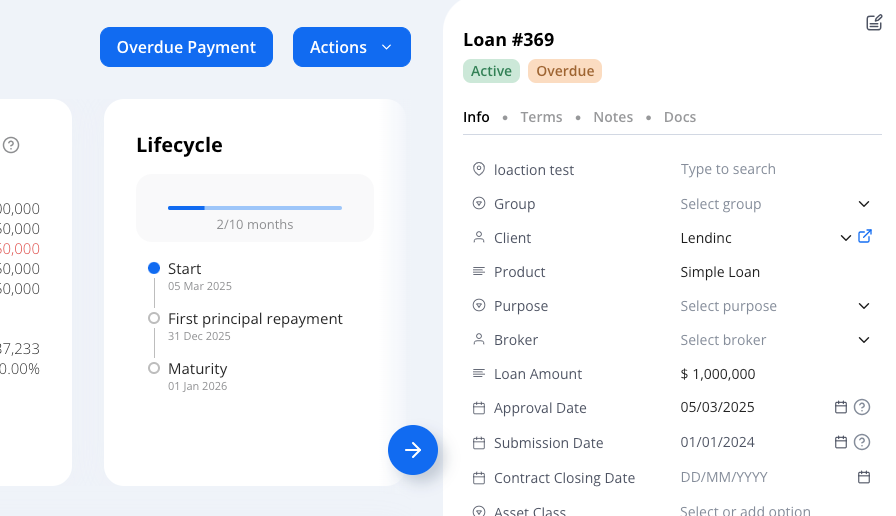
Click the Edit button in the top-right corner
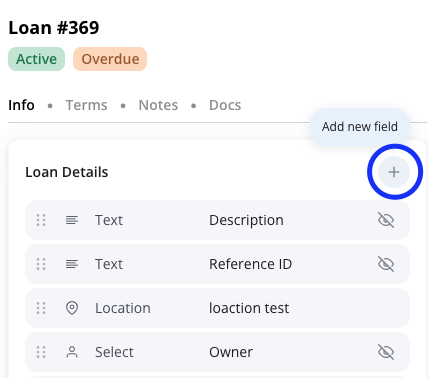
Click “Add New Field” (+ icon)
Choose a name and field type:

Text – letters, numbers, symbols
Number – whole numbers only
Decimal – numbers with decimals
Date – calendar-based input
Checkbox – true/false
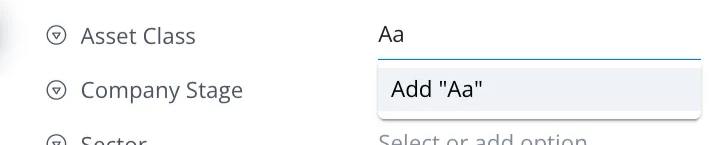
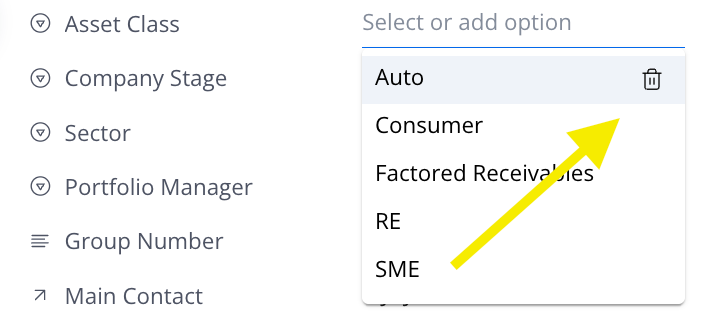
Select – dropdown menu (single select):
To add an option to the dropdown list, type the item and click “Add”
To remove an option, click the trash icon next to it
Location – uses Google Maps API for full addresses
Relation – links to another entity (like a Client, Loan, or Funding Entity) or data table (if present) in Hypercore
Use Case Examples
Here are some real-world ways teams use Custom Properties with the Additional Info section:
Credit Rating – Add a dropdown field (e.g., “AAA”, “AA”, “A”, “BBB”) to track borrower-rating levels.
Collateral Type – Capture whether the loan is secured by “Real Estate”, “Plant & Equipment”, “Receivables”, etc.
Risk Category – Tag each loan as “Low Risk”, “Moderate Risk”, or “High Risk” for internal reporting.
Borrower Industry – Use a Select field like “SaaS”, “Real Estate”, “Manufacturing”, “Hospitality” to classify the borrower.
Loan Purpose – Track intended use: “Acquisition”, “Working Capital”, “Refinance”, “Growth Capital”.
Origination Channel – Record how the deal was sourced: “Direct”, “Broker”, “Platform Partner”.
Servicing Officer / Relationship Manager – A field to note the internal team member overseeing the loan.
Internal Tier or Rating – Create your own internal classification, e.g., “Tier 1”, “Tier 2”, “Tier 3”.
2. Data Tables
What Are Data Tables?
Data tables are structured sets of information. They’re ideal for storing:
Lists (e.g., contacts, legal reps, assets)
Time-based records (e.g., monthly revenue, inspections)
How to Create
There are 2 ways you can create a new data table:
From within an entity (loan, client, funding source, etc.)
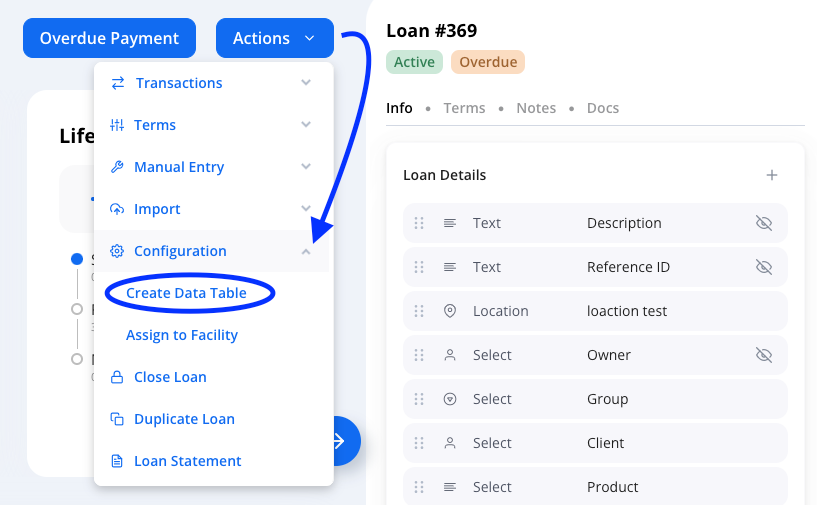
Within the entity, go to Actions > Configuration
Select Create Data Table
Enter:
Table name
(Optional) Category group (to group multiple tables visually)
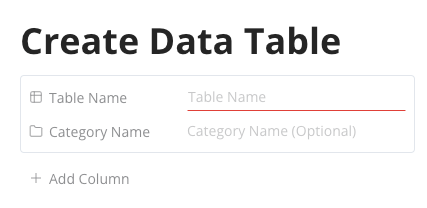
Add columns
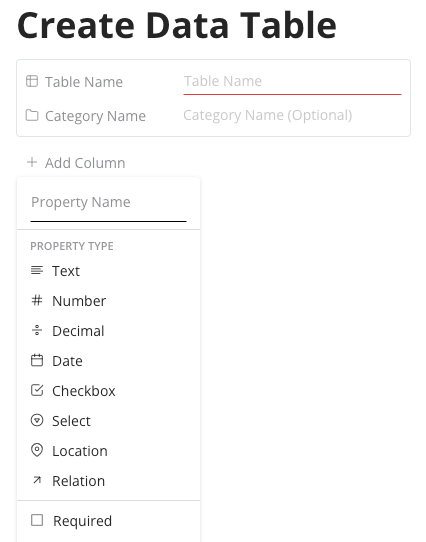
The column types are the same as dynamic properties
You can mark a column as mandatory by clicking the “Required” checkbox
Submit to save
From the Data Tables Module
Select the Data Tables icon on the left navigation bar
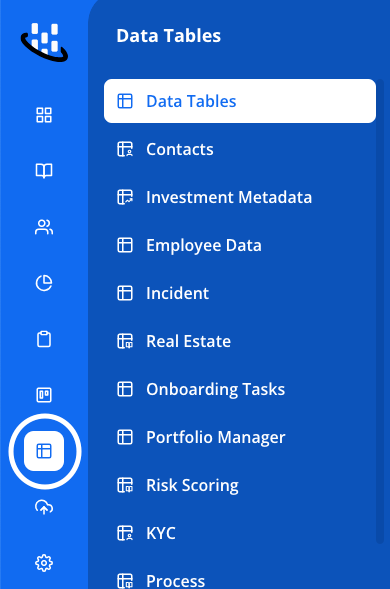
Click on “Create table”
Select the Table Name and Category Name (Optional)
Select Entity Type (Loan, Client, Funding Entity, etc.)
For a standalone table, select General
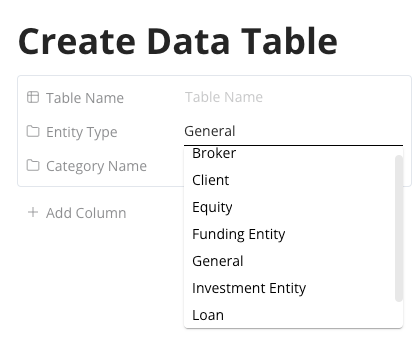
Table Example: Monthly Revenue Tracker
Date | Revenue | Notes |
|---|---|---|
2025-04-01 | 285,000.00 | April performance |
2025-05-01 | 304,200.25 | Marketing push |
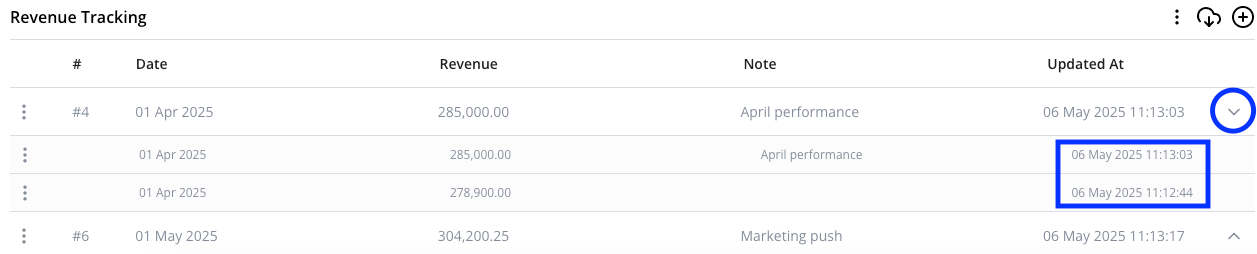
Editing & Versioning
You can edit any row in the data table
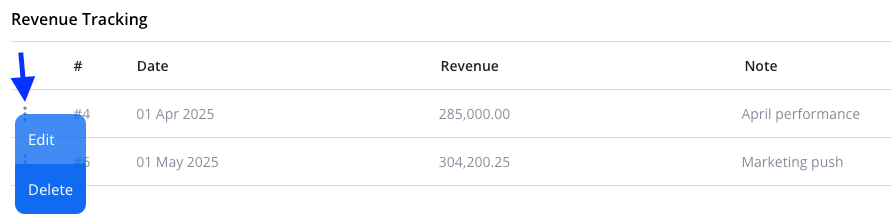
A version history is available for each row
3. Standalone vs Entity-Attached Tables
Table Type | Description |
|---|---|
Entity-Attached | Linked directly to a loan, client, or source |
Standalone | General-purpose tables not tied to a specific entity |
Use standalone tables when the data is organizational but not tied to one specific loan/client.
4. Dynamic Properties + Data Tables in Reporting
Dynamic fields and data tables can be embedded into:
Loan/Customer/Investor Statements
Custom reports
This can be relevant for a variety of uses such as additional banking data for invoice statements, geographic information on a portfolio dashboard, creating a portfolio loantape, etc.
5. Summary: When to Use What
Use Case | Choose... |
|---|---|
Single static value (e.g., address) | Additional Info |
Multiple values (e.g., contacts) | Data Table |
Time-series data (e.g., revenue) | Data Table |
Display-only custom fields (checkbox, constant date, etc.) | Additional Info |
6. Importing Data
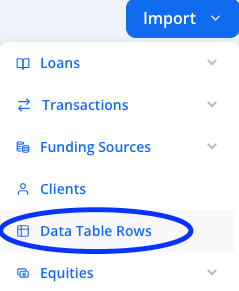
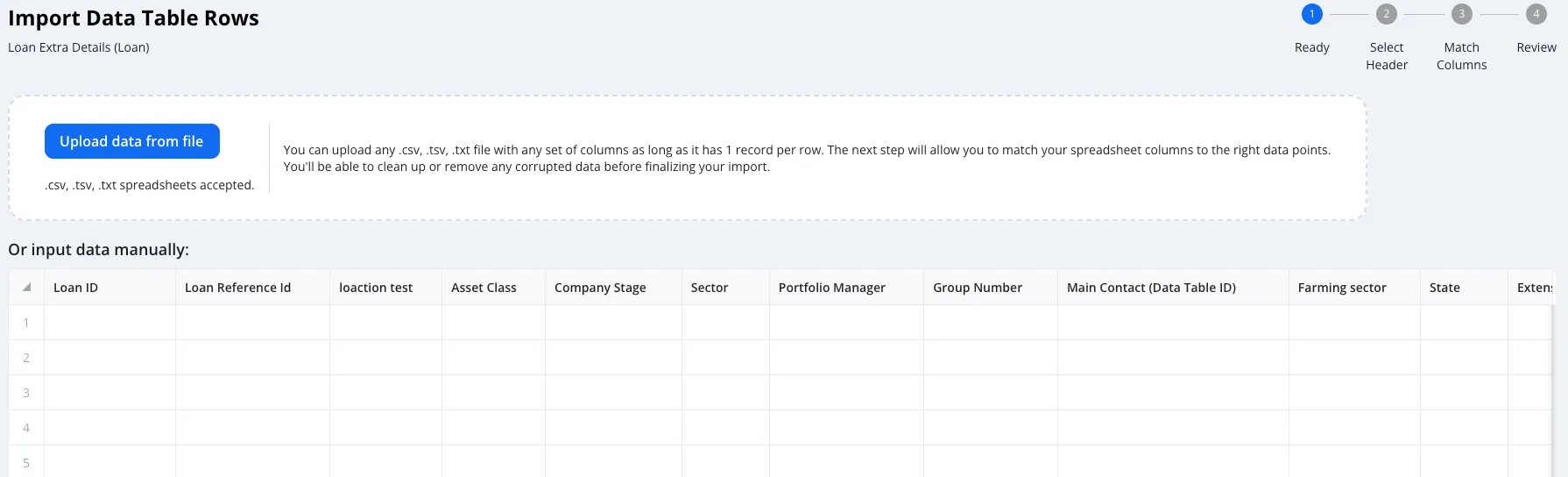
Our import/bulk actions functionality supports uploading data into Hypercore, whether it is additional information or a data table.
From the Bulk Actions module, you can select “Data Table Rows”
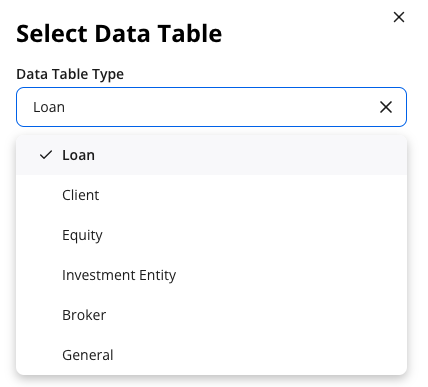
Select the Data Table Type
This is the tied entity
If you are interested in a standalone table, select “General”
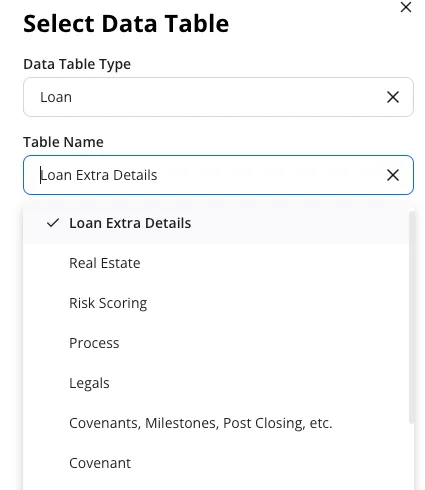
Select the Table name
This will show all tables tied to the selected entity.
If interested in the Additional Info (not a table), it will appear as Extra Details, for example “Loan Extra Details”
Once inside the import functionality, you can either upload via file (CSV preferred) or manually enter the data.
Questions?
Reach out to the Hypercore Customer Success team for support or ideas on how to structure your data most effectively: Support@hypercore.ai