Connecting to the Hypercore MCP (Coming Soon)
Last updated: September 17, 2026
Connect your AI application to Hypercore using the Model Context Protocol (MCP). Headless Hypercore lets connected applications work with your Hypercore data through natural-language requests, with access controlled from your Hypercore settings.
The application you connect to Hypercore's MCP will only have access to data you would have access to in Hypercore, and will read and write on behalf of you.
1. Enable MCP access in Hypercore
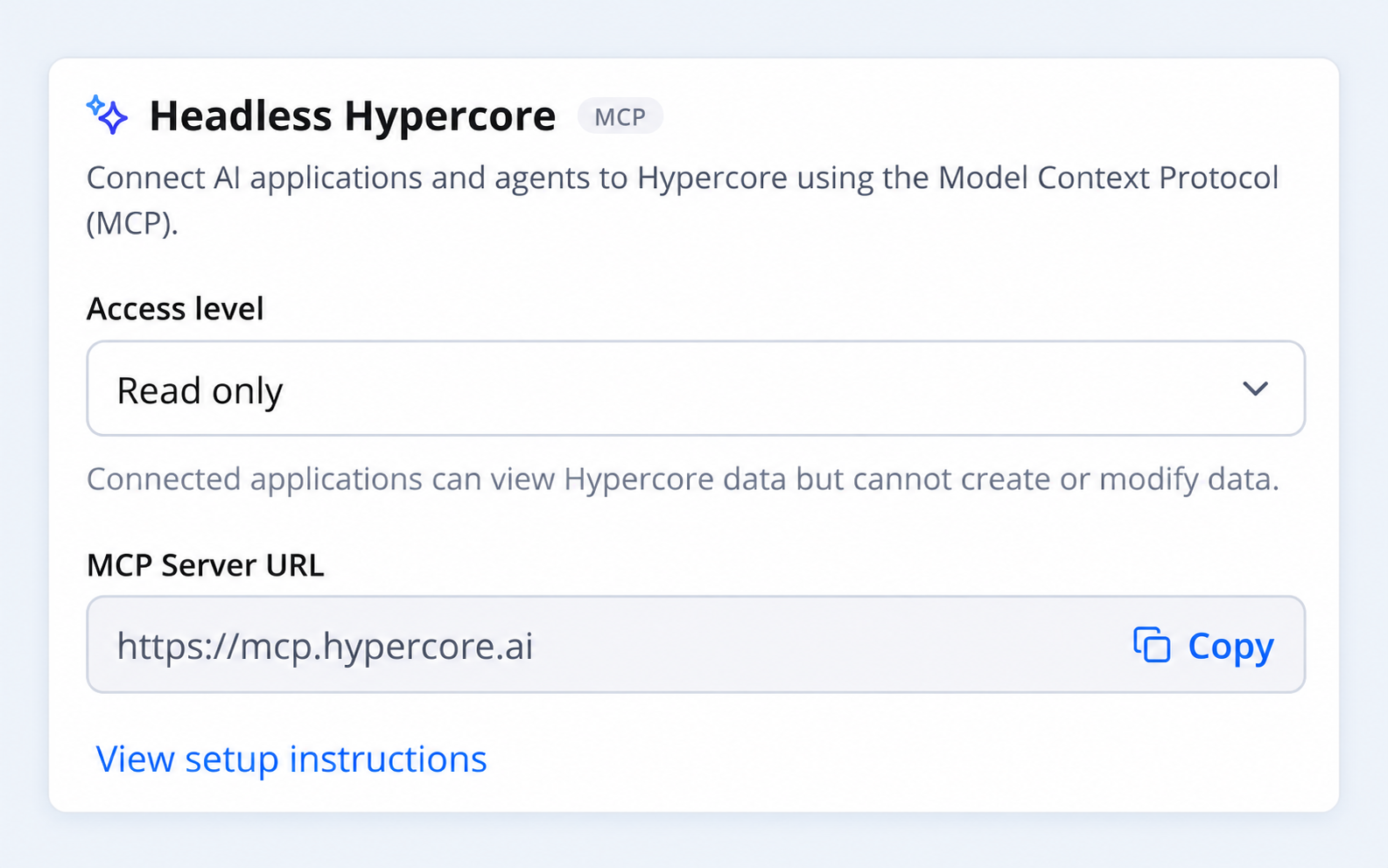
Open Settings > General and find Headless Hypercore.
Select an Access level:
Access level | What connected applications can do |
|---|---|
Disabled | MCP access is turned off. |
Read only | View Hypercore data without making changes. |
Read & write | View data and request changes through supported MCP tools. Changes create draft for review and approval, as explained below. |
Tip: Start with Read only if you want to ask questions and explore your data. Choose Read & write when you also need the application to make changes.
Read & write access level - How AI changes are reviewed and approved
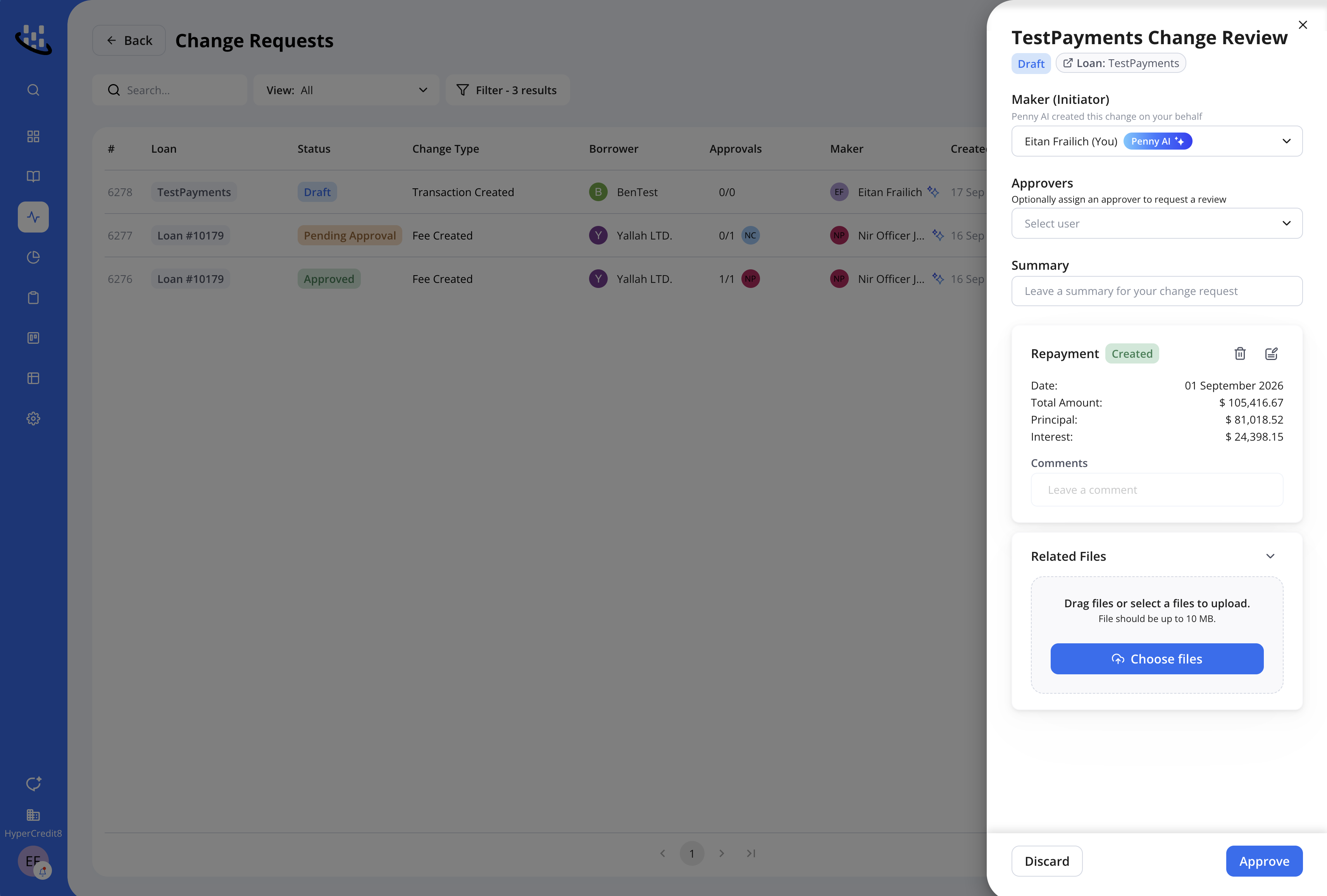
When MCP write access is restricted to the Control Layer (Maker-Checker) supported changes follow an approval process:
Draft: The AI creates a draft Change Request in Hypercore. The proposed changes are not applied to the live loan yet.
Review: Actions originating from MCP are marked with an AI indicator, so you can identify and review them in Hypercore.
Approve: Human user approves the Change Request before the changes take effect. Unwanted draft changes can be discarded.
All change requests can be viewd and audited in the Change Requests page.
If Control Layer is disabled, any user can approve AI-generated changes, including the person who requested them. If Control Layer is enabled, approval requires another user with the Checker role.
Read & write access level supports actions covered by Change Requests only, such as loan-term updates, transactions, fees, deposits, and OID changes.
2. Connect your AI application
Claude Desktop and Web
Individual accounts
Open Customize > Connectors in Claude.
Click + > Add custom connector.
Name the connector Hypercore, where a name field is available, and paste your MCP Server URL.
Click Add, then Connect and complete the authentication prompts.
In your conversation, open + > Connectors and enable Hypercore.
Team and Enterprise accounts
An organization Owner must first add the connector under Organization settings > Connectors > Add > Custom > Web using the Hypercore MCP Server URL. Each member then opens Customize > Connectors and clicks Connect for Hypercore.
Leave "OAuth Client ID" and "OAuth Client Secret" blank.
ChatGPT
Use a custom MCP app through Developer mode, where enabled for your account or workspace.
In ChatGPT on the web, open Settings > Security and login and enable Developer mode.
Open Plugins, click +, and create a developer-mode app.
Name it Hypercore and enter your MCP Server URL.
Configure the authentication method supported by Hypercore and complete the connection prompts. Contact Hypercore Support if you need authentication settings.
In a conversation, choose Developer mode from the + menu and select Hypercore.
If Developer mode or app creation is unavailable, check with your workspace administrator.
See OpenAI's Developer mode instructions for current setup and availability.
Claude Code
Run this command in your terminal, replacing the placeholder with your copied URL:
claude mcp add --transport http hypercore "https://mcp.hypercore.ai/mcp"In Claude Code, run /mcp, select hypercore, and complete authentication if prompted.
See Claude Code's MCP instructions.
Cursor
Add the following entry to ~/.cursor/mcp.json. If the file already contains other servers, add hypercore inside the existing mcpServers object.
{
  "mcpServers": {
    "hypercore": {
      "url": "https://mcp.hypercore.ai/mcp"
    }
  }
}
Open Cursor's MCP settings, locate hypercore, and complete any connection or authentication prompts.
See Cursor's MCP instructions.
3. Verify the connection
Start a conversation with Hypercore enabled and try:
Use Hypercore to retrieve the details of loan [loan ID] and summarize the information returned.
Check that the application actually retrieves a Hypercore record and that it matches the loan in your account. A saved connector alone does not confirm a working connection.
Example requests
Once connected, try requests such as:
“Use Hypercore to summarize loan [loan ID].”
“Use Hypercore to retrieve borrower [borrower ID] and summarize the information available.”
Available information and actions depend on the tools exposed by Hypercore and your account's access. MCP does not necessarily expose every feature available in the Hypercore interface.
Session Expiry and Reconnecting
If your connection expires, you may see an authentication error or the application may stop retrieving Hypercore data. To reconnect:
Claude Desktop/Web: Open Customize > Connectors, find Hypercore, and reconnect.
Claude Code: Run
/mcp, select Hypercore, and re-authenticate.Other applications: Open the connector or MCP settings and reconnect Hypercore.
Disconnecting after approximately 24 hours? This may be related to a reported Claude issue with automatically renewing authentication tokens.
If you find yourself needing to reconnect unusually frequently (e.g. multiple times per day), please reach out to support.
Troubleshooting
Issue | What to check |
|---|---|
Connection fails | Copy the MCP Server URL again from Hypercore and check that access is not set to Disabled. |
Authentication fails | Reconnect and complete the sign-in prompts. If the error persists, contact Hypercore Support. |
The application cannot make changes | Check whether the access level is Read only. Changes also require a supported tool and the appropriate account access. |
Connected, but no Hypercore tools are used | Enable Hypercore for the conversation and explicitly ask the application to use it. |
Connection expires or disconnects after approximately 24 hours | Reconnect Hypercore through your application’s connector settings. See Session Expiry and Reconnecting above for instructions and details about the reported Claude issue. |
Disconnecting
To stop using Hypercore in one AI application, disconnect or remove its Hypercore connector.
To turn off MCP access from Hypercore, return to Settings > General > Headless Hypercore and select Disabled.