Hypercore Basics - Introduction
Last updated: June 24, 2026
Here is a quick overview of the various modules and features of Hypercore:
Overview
Hypercore is a loan management platform that helps users track loans, manage clients and investors, automate workflows, and generate reports. With a consistent interface and structured navigation, it streamlines portfolio management and internal processes while providing tools for financial analysis and collaboration.
Navigation & Layout
Hypercore's various modules and features are navigated via our sidebar on the left-side of the screen. Hovering over an icon presents the module and possible sub-entities.
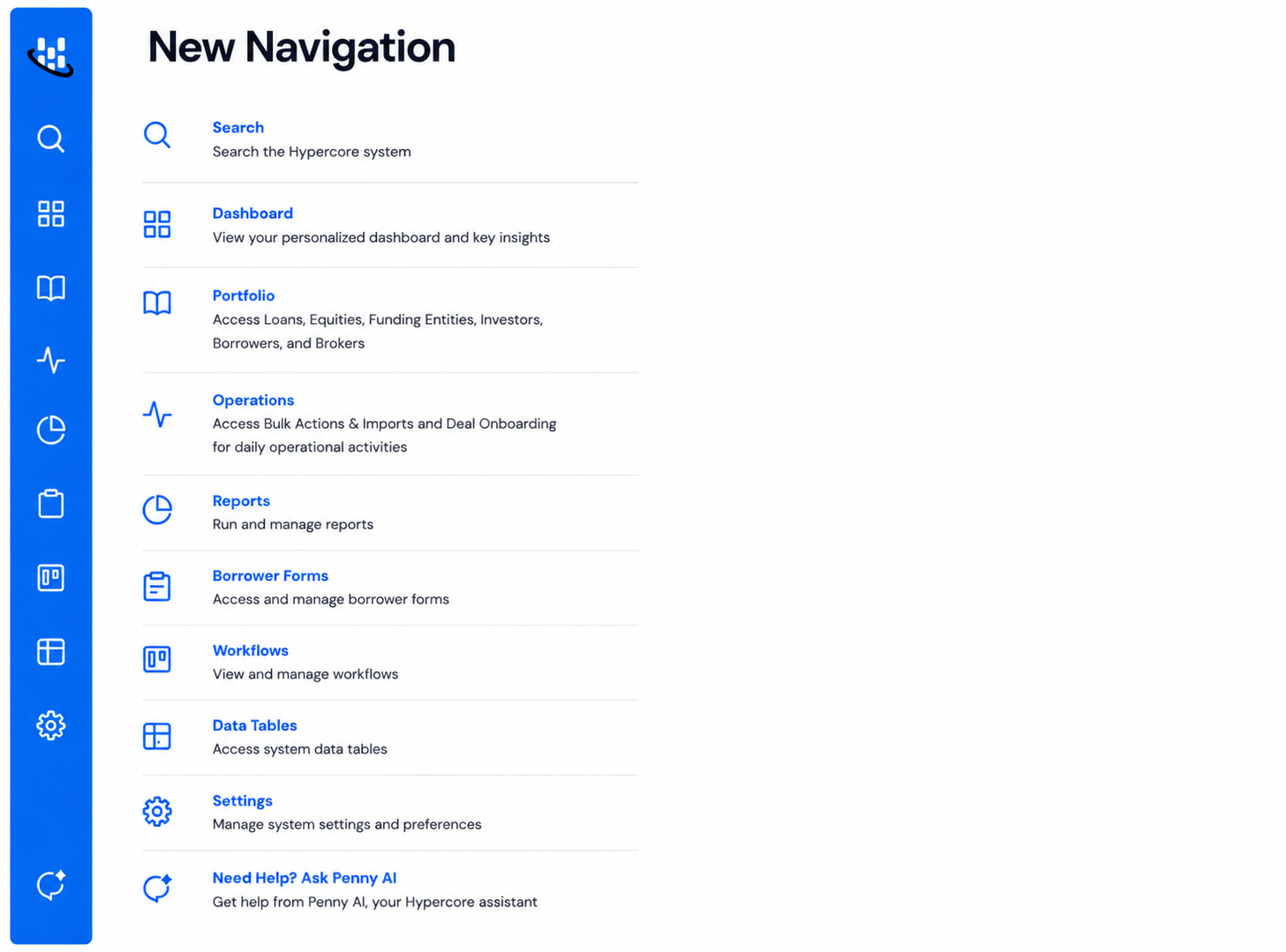
Dashboard – View key portfolio metrics, insights, tasks, and recent activity.
Portfolio – Access and manage all core portfolio entities, including Loans, Equities, Funding Entities, Investors, Borrowers, and Brokers.
Operations – Access operational tools for day-to-day activities, including Bulk Actions & Imports and Deal Onboarding.
Reports – Generate, customize, and manage reports tailored to your business requirements.
Borrower Forms – Create, distribute, and manage borrower application forms and data collection processes.
Workflows – Build and automate processes such as approvals, compliance checks, notifications, and task management.
Data Tables – Manage and maintain system data, reference tables, and portfolio information.
Settings – Configure system preferences, user access, account settings, and platform options.
Penny AI – Get help, answers, and guidance directly within Hypercore using the AI assistant.
For quick navigation you can use ctrl+k (PC) or cmd+k (Mac) to search for various loans, borrowers, and other items
Hypercore follows a consistent two-section layout:
Left Pane – Displays key details, often split into top and bottom sections. For example, on a loan page, the loan schedule appears here.
Right Pane – Provides deeper insights, such as additional information, terms, notes, and documents.
In many cases, the right pane is collapsible, allowing for a clearer view of the primary information you're focusing on.

ID #'s and URLS
In Hypercore, every item, whether a loan, funder, borrower, etc. receives an internal ID # (see screenshot as an example).

The Hypercore URL to get to this item will include the ID # - for example https://app.hypercore.ai/loans/ 260
The ID is a great way in communicating internally and with Hypercore personnel for quicker handling of any requests/issues.